Docker
Stalwart is available as a Docker image that includes JMAP, IMAP, SMTP and WebDAV servers. To get started, pull the stalwart:latest image, for example:
$ docker pull stalwartlabs/stalwart:latestThen, create a directory on your host machine where you will store the configuration files and the data for the mail server, for example:
$ mkdir /var/lib/stalwartOnce you have completed the setup instructions, start the Stalwart container:
$ docker run -d -ti -p 443:443 -p 8080:8080 \ -p 25:25 -p 587:587 -p 465:465 \ -p 143:143 -p 993:993 -p 4190:4190 \ -p 110:110 -p 995:995 \ -v <STALWART_DIR>:/opt/stalwart \ --name stalwart stalwartlabs/stalwart:latestMake sure to replace <STALWART_DIR> with the path to the directory you created above. Please note that it is not necessary to expose all these ports, read the securing your server documentation for more information.
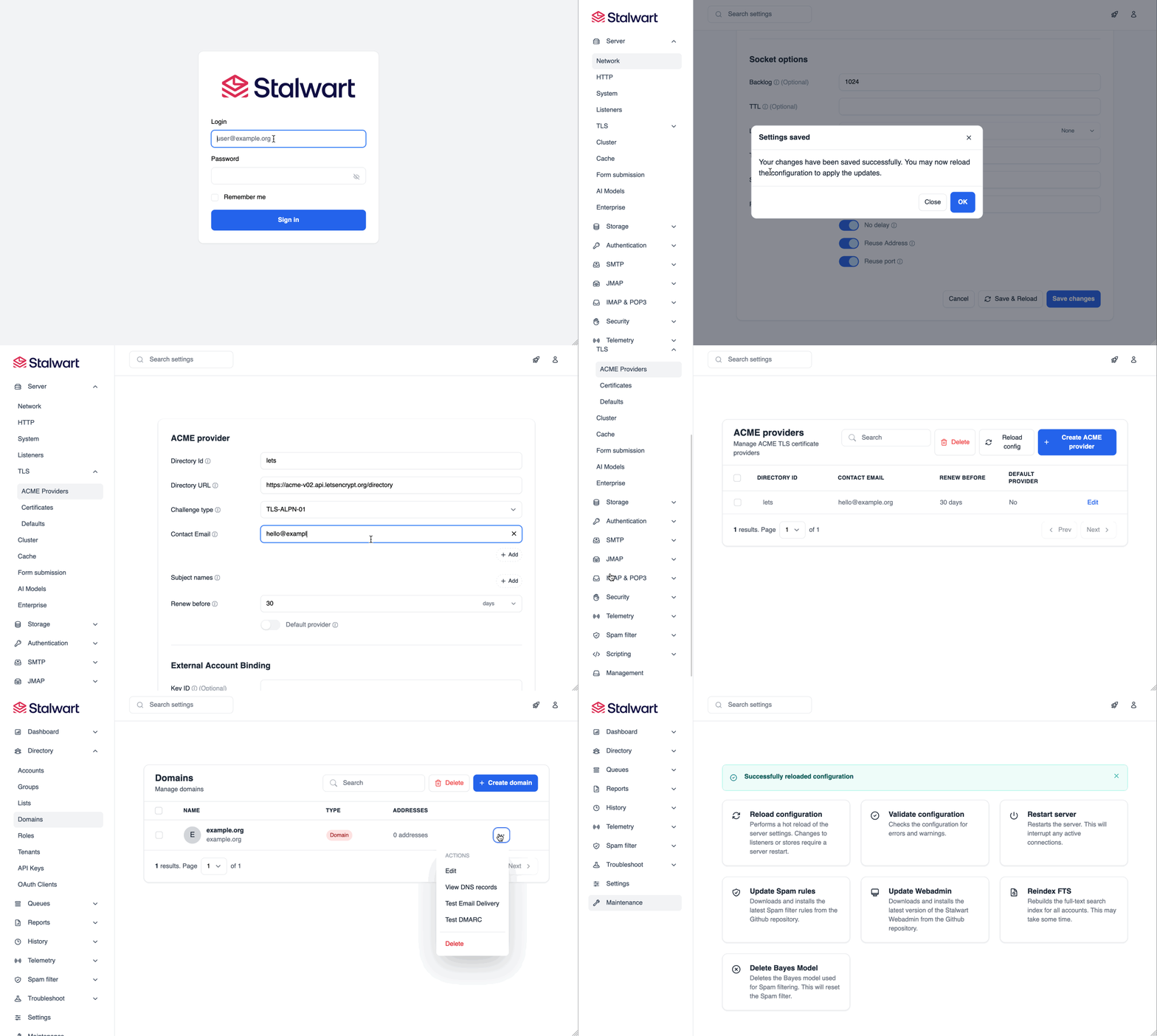
Log in to the web interface
Section titled “Log in to the web interface”Execute docker logs stalwart to obtain the system the administrator account and password:
$ docker logs stalwart✅ Configuration file written to /opt/stalwart/etc/config.toml🔑 Your administrator account is 'admin' with password 'w95Yuiu36E'.With this information, you can log in to the web interface at http://yourserver.org:8080/login.
Choose where to store your data
Section titled “Choose where to store your data”Once you have logged in, go to the Settings > Storage section and configure your data, blob, full-text and in-memory stores. Read the choosing a database section for more details on the available options.
If you would like an external authentication directory such as LDAP or SQL, go to the Settings > Authentication section and configure your authentication backend.
Configure your hostname and domain
Section titled “Configure your hostname and domain”Next, make sure that the server hostname in Settings > Server > Network is correct. Then, add your main domain name in Management > Directory > Domains. After creating the domain, the interface will display the DNS records that you need to add to your domain’s DNS settings.
For example:
MX example.org. 10 mail.example.org.TXT 202404e._domainkey.example.org. v=DKIM1; k=ed25519; h=sha256; p=MCowBQYDK2VwAyEAOT2JN9F8SLTVFNEODDu22SD9RJDC282mugCAeXkzjH0=TXT 202404r._domainkey.example.org. v=DKIM1; k=rsa; h=sha256; p=MIIBIjANBgkqhkiG9w0BAQEFAAOCAQ8AMIIBCgKCAQEAykeYJjv5N0AlnJ8gKF+/8qjbStiMFWvPg+p3JPh96GPXEN6l9W/Ee6Lag6i3vLyTVH5dnRVRBhfWhc+Dc0nKreZe4f5i4L5M4RI31+RpEgu4bCmncUIk2WzJgGBW5XbiOwXjge6OKWtJQN9d8Lc1AuryL5xeged9iS6xd/+EJz4WxAf18U+j38xmAm8fJUTBnQVeb/AZup+voSKAS59jyumsb0jQtXfX5xnwTFXdiX2OF8LRrmmNs/ObHozgHftxAv+YCiSU4bqSlKNPQIrN5kk1YnZDnLlc1Gr66AWlmdUVE7PWtZPTy4f8+uHO93EW3WUxLmynZm+Syn9FTJC2uwIDAQABTXT mail.example.org. v=spf1 a -all ra=postmasterTXT example.org. v=spf1 mx -all ra=postmasterTXT _dmarc.example.org. v=DMARC1; p=reject; rua=mailto:[email protected]; ruf=mailto:[email protected]Enable TLS
Section titled “Enable TLS”Stalwart requires a valid TLS certificate to secure the connection between the server and the client. You can enable TLS in one of the following ways:
- If you already have a TLS certificate for your server, you can upload it in the
Settings>Server>TLS>Certificatessection. - If you don’t have a certificate, you can enable automatic TLS certificates from Let’s Encrypt using ACME. To enable ACME, go to the
Settings>Server>TLS>ACME Providerssection and add Let’s Encrypt as your ACME provider making sure that your server hostname is listed as one of the Subject Names. Stalwart supports thetls-alpn-01,dns-01andhttp-01challenges, if you are unsure which one to use, read the ACME challenge types documentation. - If you are running Stalwart behind a reverse proxy such as Traefik, Caddy, HAProxy or NGINX, you should skip this step and configure TLS in your reverse proxy instead.
Restart the container
Section titled “Restart the container”Once you have completed the setup instructions, restart the container:
$ docker restart stalwartNext steps
Section titled “Next steps”If you have selected to use the internal directory, you can now add your users in the Management > Directory > Accounts section. If you have selected an external directory, you will need to create users in your directory server.
If everything went well, your users should now be able to connect to the server and send and receive emails. If you are unable to connect to the server, check the log files from the web-admin or under <INSTALL_DIR>/logs for any errors.
If you encounter any issues, please refer to the troubleshooting section for help. If you have questions please check the FAQ section or start a discussion in the community forum.
Setup demonstration
Section titled “Setup demonstration”