Linux, macOS and FreeBSD
This tutorial installs Stalwart on a Linux, macOS or FreeBSD host with the installation script and takes the server to the point where it sends and receives mail. Each step explains what it does and why, gives the result to expect, and links to the problems that most often occur at that point, which Common problems near the end of the page describes with their fixes. The files and services that the script creates are described in Installation details at the end of the page.
Prerequisites
Section titled “Prerequisites”The host must meet the system requirements: a static public IP address, a server hostname that resolves to it, port 25 open in both directions, and control over the DNS zone of the mail domain.
The installation script needs root privileges, because it creates a service account and registers a system service. It downloads the release from GitHub, so the host also needs outbound HTTPS access.
Step 1: Run the installation script
Section titled “Step 1: Run the installation script”The installation script puts the server on the host and starts it for the first time. Download the script and run it as root:
$ curl --proto '=https' --tlsv1.2 -sSf https://get.stalw.art/install.sh -o install.sh$ sudo sh install.shThe script downloads the latest release for the host’s architecture and creates an unprivileged service account for the server, so that the server does not run as root. It then installs the binary and its directories, registers a service with the host’s service manager, which starts the server at boot, and starts the server. To install under a directory of choice instead of the standard locations, or to install the FoundationDB build, see Other installation options before running the script.
When it finishes, the script prints Installation complete!, followed by the command that shows the temporary administrator password, which Step 2 needs, and the address of the setup wizard, Finish setup at: http://<host>:8080/admin.
If something goes wrong in this step, Step 1: Installation script under Common problems lists the usual causes and their fixes.
Step 2: Open the setup wizard
Section titled “Step 2: Open the setup wizard”At its first start the server finds no configuration file and therefore starts in bootstrap mode. In this mode it serves only the setup wizard, over plain HTTP on port 8080, and creates a temporary administrator account with which the administrator signs in to it. This step retrieves that account’s password and opens the wizard.
Retrieve the administrator credentials
Section titled “Retrieve the administrator credentials”The temporary account is named admin and has a random 16-character password. The server prints both once to its output, in a block that starts with Stalwart bootstrap mode - temporary administrator account and contains these lines:
Stalwart bootstrap mode - temporary administrator account
   username: admin   password: <16 characters>
Each service manager keeps the server output in a different place. Print the block with the command for the host’s service manager:
| Service manager | Command |
|---|---|
| systemd | sudo journalctl -u stalwart -n 200 | grep -A8 'bootstrap mode' |
| SysV init | sudo grep -A8 'bootstrap mode' /var/log/stalwart/stalwart.log |
| launchd | sudo log show --predicate 'process == "stalwart"' --last 5m |
| rc.d | sudo grep -A8 'bootstrap mode' /var/log/stalwart/stalwart.log |
Open http://<host>:8080/admin and sign in as admin with the temporary password. The wizard opens after sign-in.
If something goes wrong in this step, Step 2: Setup wizard access under Common problems lists the usual causes and their fixes.
Step 3: Complete the setup wizard
Section titled “Step 3: Complete the setup wizard”The setup wizard turns the empty server into a configured one. Its five screens cover the server’s identity, its storage, the source of its accounts, its log and the publication of its DNS records, and every field on them has a default that suits a single server. On a first installation, therefore, only the server hostname and the default domain have to be entered. Each field also corresponds to a field of the Bootstrap object, which a deployment tool can submit through the API instead of completing the wizard.
Screen 1: Server identity
Section titled “Screen 1: Server identity”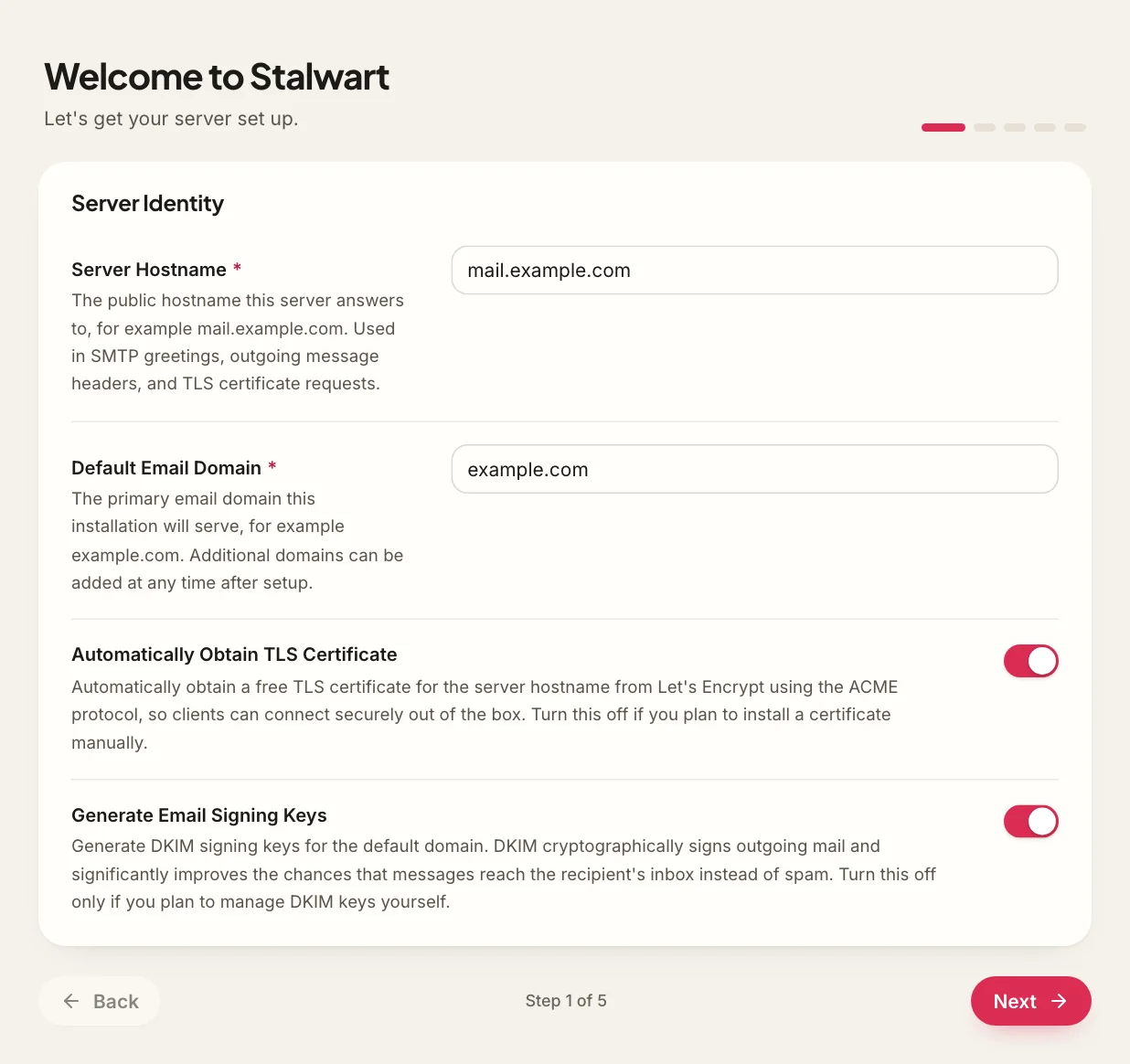
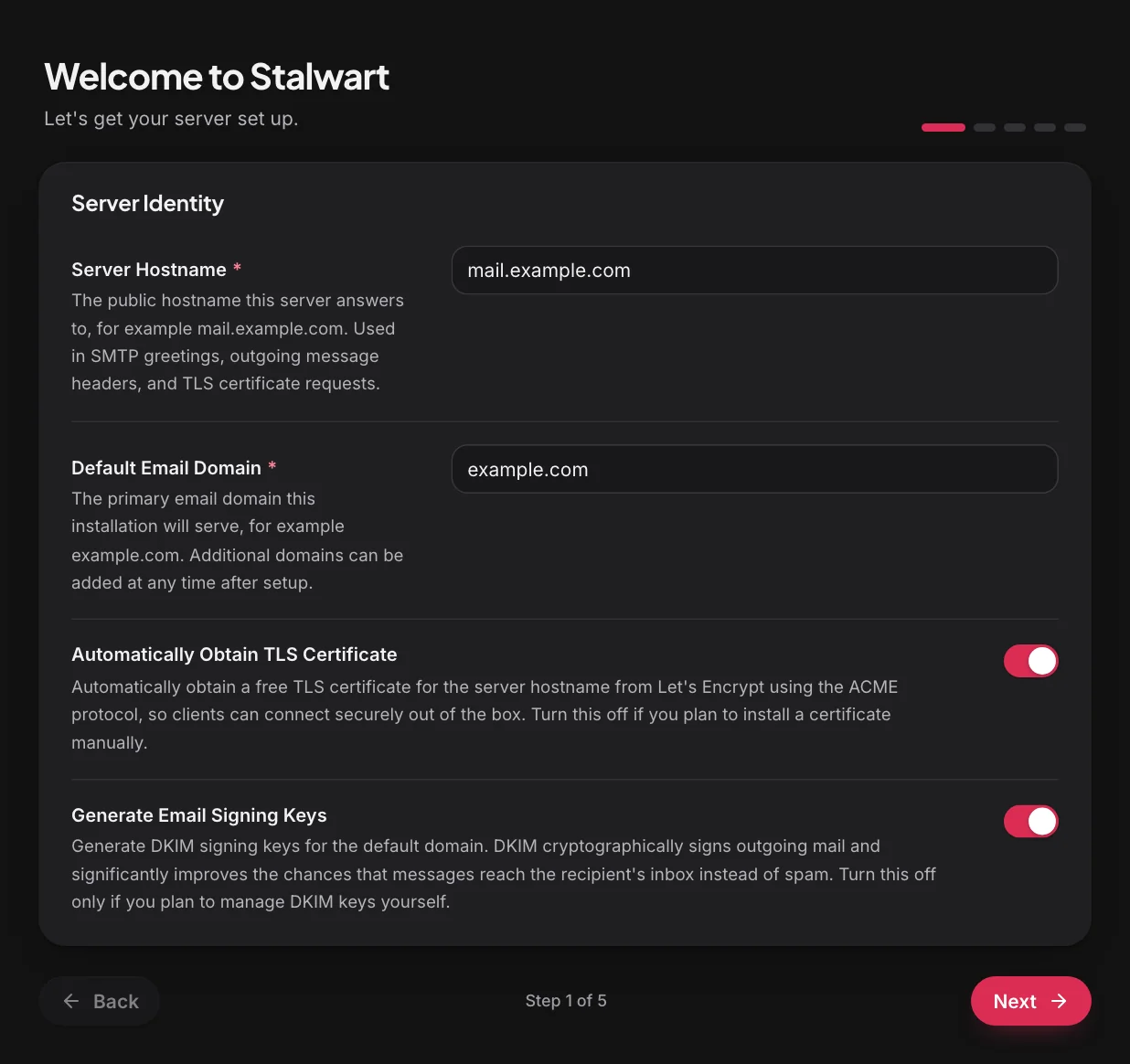
Enter the Server Hostname, for example mail.example.com, and the Default Email Domain, for example example.com. The wizard pre-fills both fields from the machine’s host name, so check both and replace them; in a container, the pre-filled host name is the container id, which is never a valid hostname. Clients and other mail servers reach the server under its hostname, so the hostname must resolve to the server’s address, as listed in the system requirements. The domain is the first mail domain the server hosts, the part of its addresses after the @. Both names must follow the rules in Accepted domain names. A name the wizard does not accept is reported only when Finish setup is pressed, as described in Setup wizard reports an error.
Leave both options on this screen enabled, because together they give the server what other systems need in order to trust it. Automatically Obtain TLS Certificate has the server request its certificate from Let’s Encrypt through ACME, the protocol certificate authorities use to issue certificates automatically, so no certificate has to be installed by hand. The server registers its ACME account when the wizard is submitted; if the registration fails, for example because the server has no outbound HTTPS access, the error is logged, the setup still completes, and the domain is left with manual certificate management. Generate Email Signing Keys creates the domain’s DKIM keys. DKIM adds a signature to outgoing mail with which receiving servers verify that the message was sent by the domain, and mail without a signature is more likely to be classified as spam.
Screen 2: Storage
Section titled “Screen 2: Storage”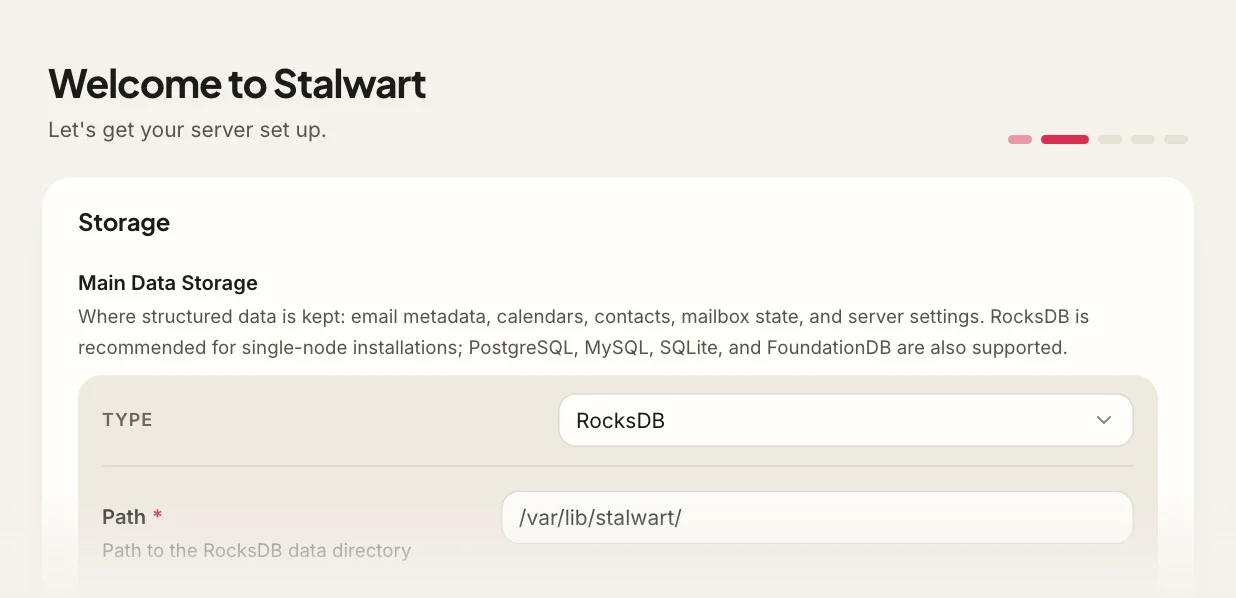
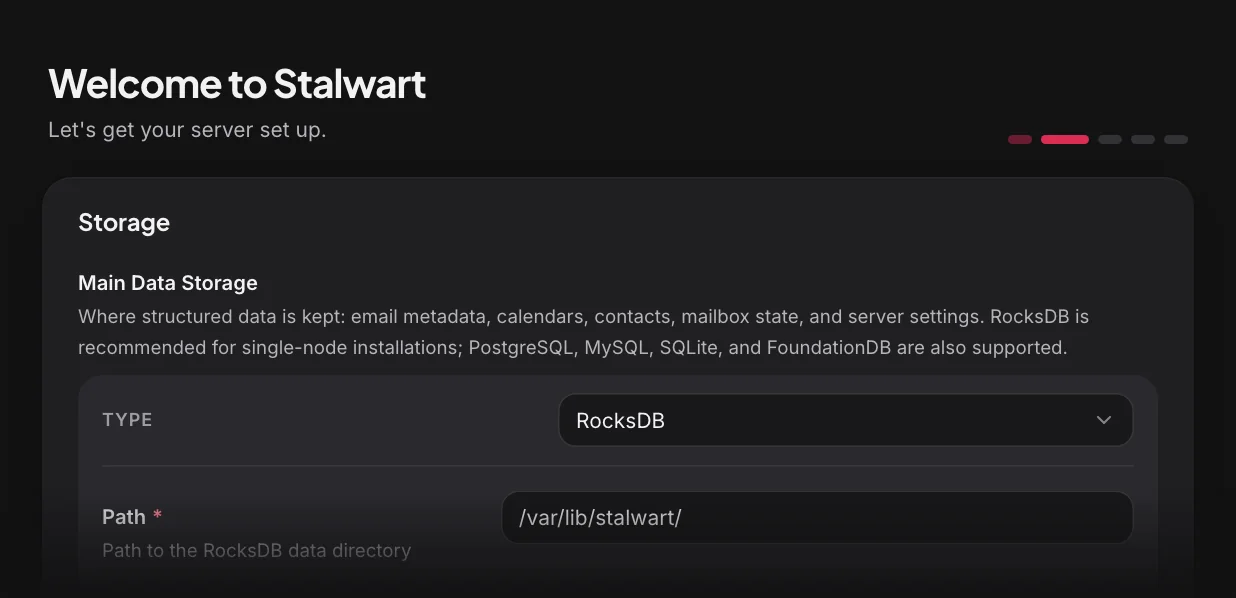
Leave the four fields on this screen at their defaults. The Main Data Storage is the database that holds all mail, accounts and settings. By default it is RocksDB, an embedded database kept in a local directory, so the server needs no separate database server. The three other fields keep attachments, the search index and temporary data in that same database or in memory. The wizard proposes /var/lib/stalwart/ as the directory, or /var/db/stalwart/ on FreeBSD. An installation made with a prefix needs other directories, as described in Other installation options. On Windows, enter C:\Program Files\Stalwart\data. The directory must exist and belong to the account the service runs as.
The wizard refuses a data store that already holds the data of a Stalwart server, as described in Setup wizard reports an error.
A server that may later become part of a cluster needs shared storage from the start, because changing the data store later requires a data migration. For the same reason, such a server needs Redis under Cache & Temporary Data, because the default in-process store is local to one node. Besides RocksDB, the screen offers PostgreSQL, MySQL and SQLite as the data store, object storage such as S3 for the blob store and a dedicated search store. Choosing a database explains the options.
Screen 3: Account directory
Section titled “Screen 3: Account directory”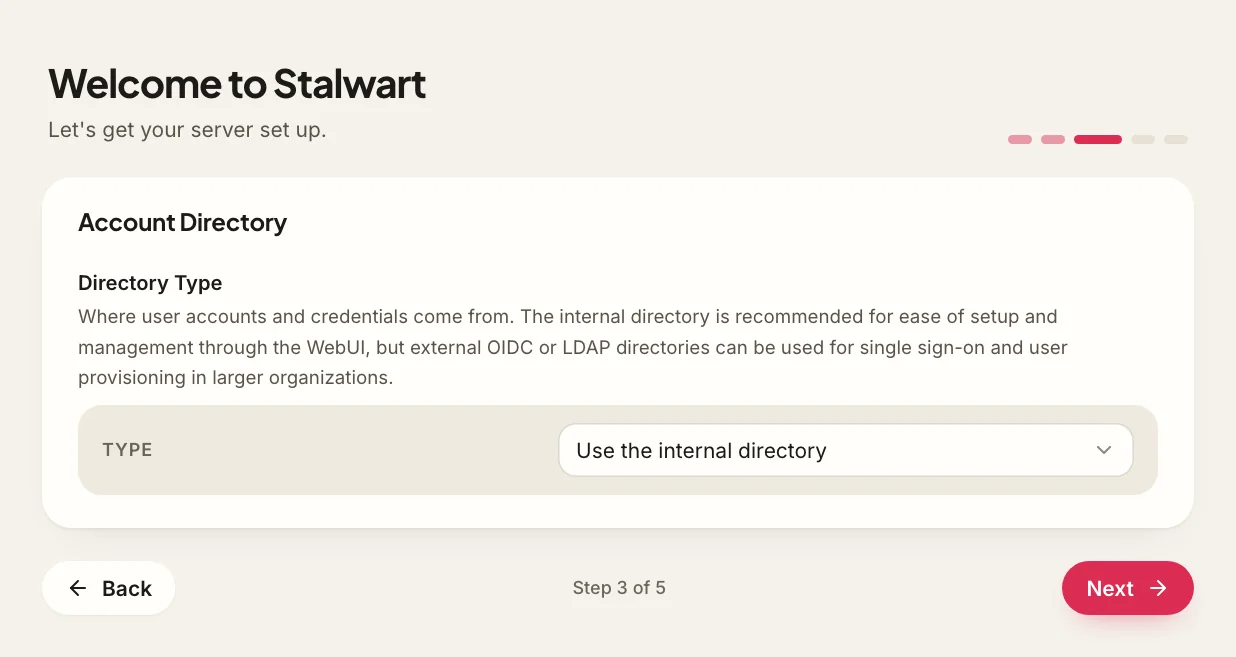
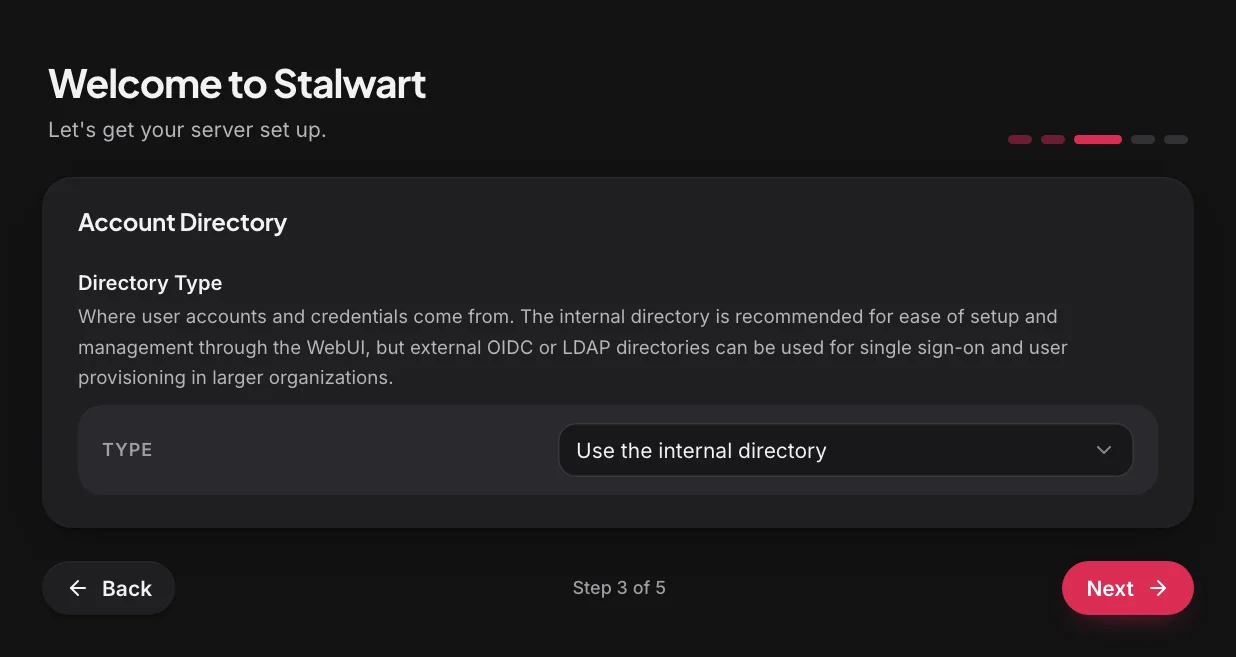
The directory is where the server keeps accounts and their passwords. Leave Directory Type at Use the internal directory, which stores them in Stalwart, where the administrator manages them in the WebUI. With this choice, the wizard also creates an administrator account on its last screen. LDAP, SQL and OpenID Connect directories are described in Choosing a directory.
Screen 4: Logging
Section titled “Screen 4: Logging”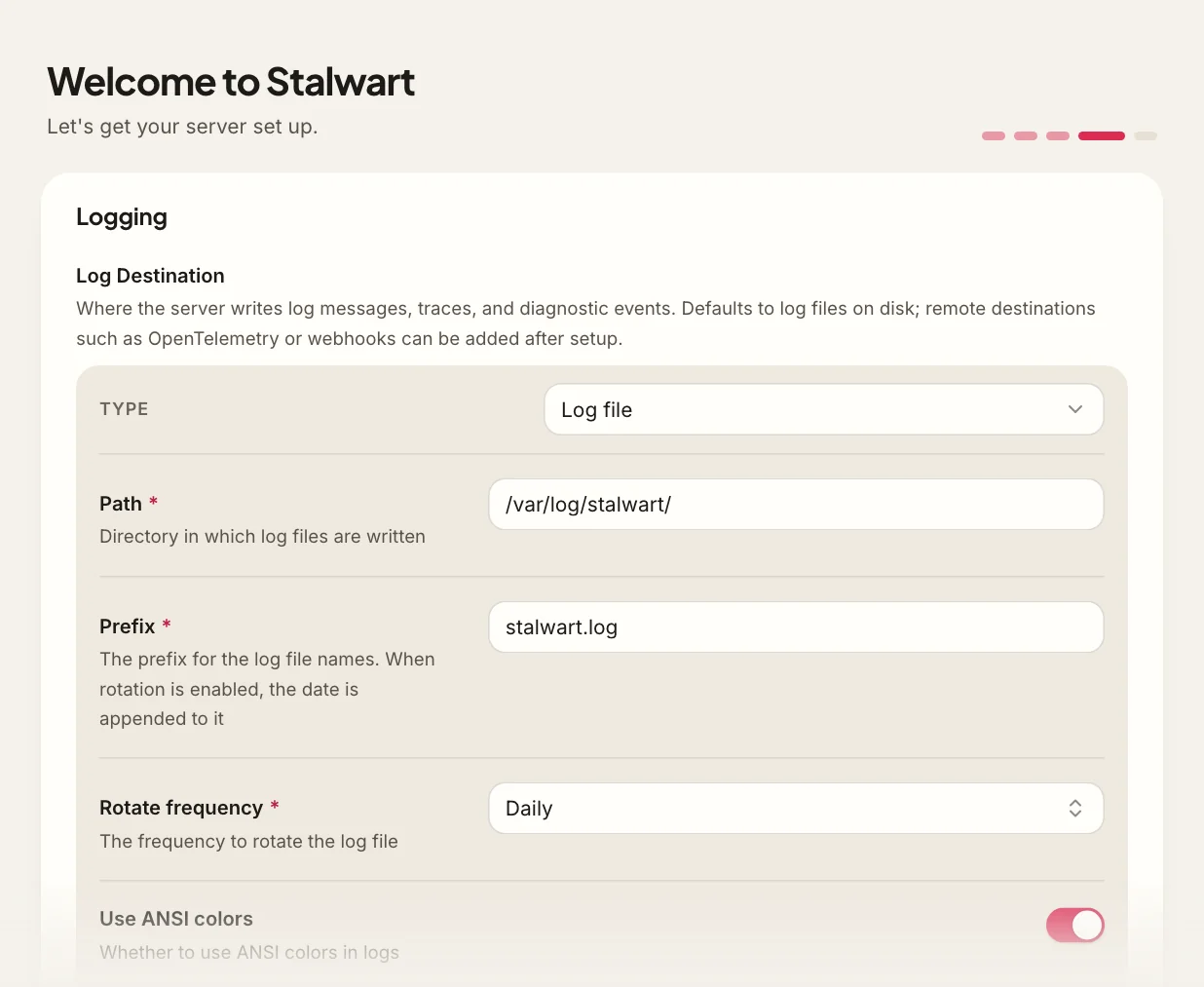
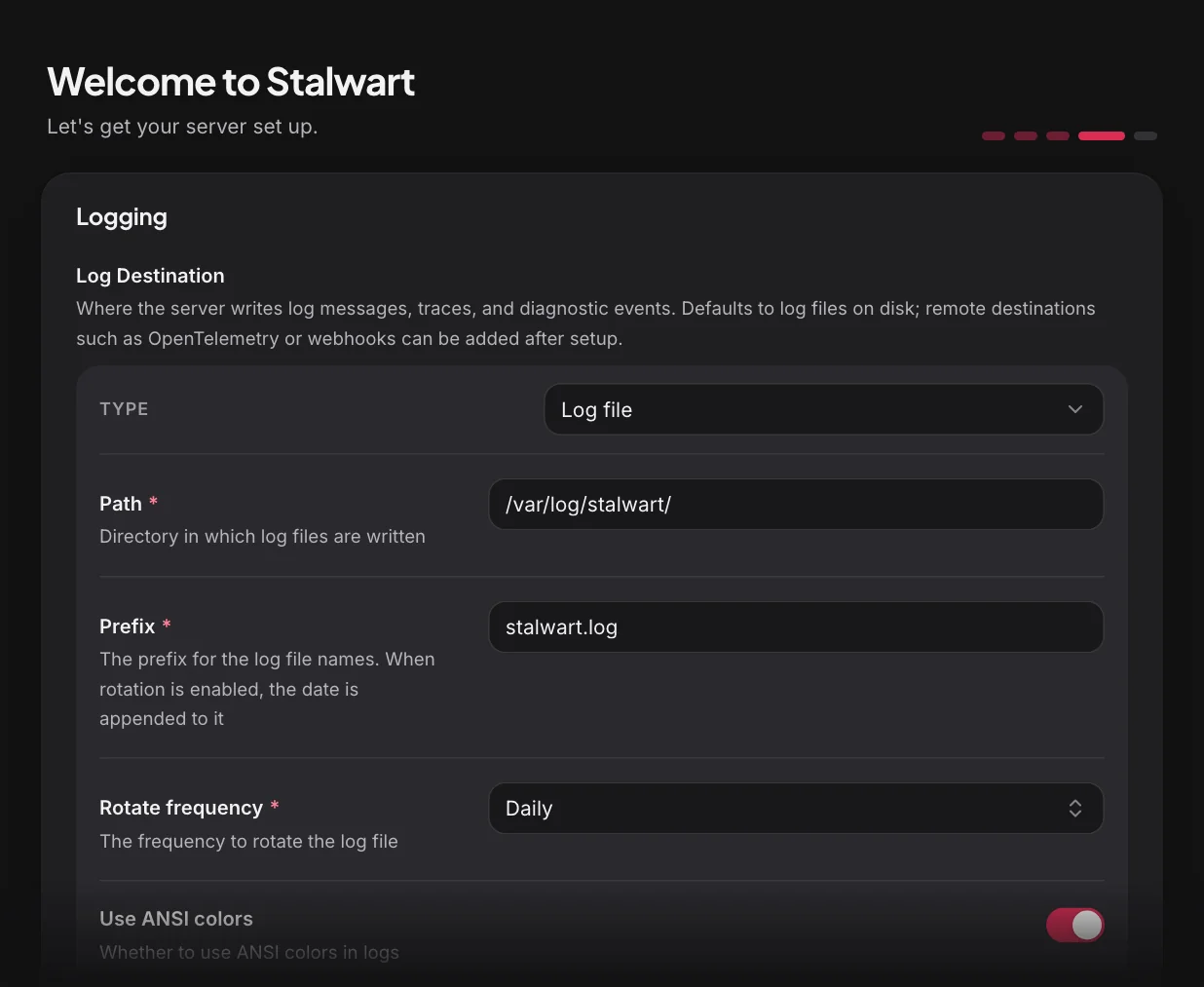
The log destination decides where the server writes its log once the setup is complete, and the right choice depends on how the platform collects output. Choose the Log Destination for the platform:
| Platform | Log destination | Where the log goes |
|---|---|---|
| Linux, macOS, FreeBSD | Log file (the default) | Daily files named stalwart.log.<date> in /var/log/stalwart/ |
| Docker | Console | The container output, read with docker logs |
| Windows | Console | The standard output file configured in NSSM |
Docker needs Console: a container has no /var/log/stalwart/ directory, so with Log file the server writes no log at all. The screen also offers Systemd Journal and Open Telemetry over HTTP or gRPC, and further destinations can be added after the setup as tracers.
Turn off Use ANSI colors, which is enabled for a log file, when the log is read by anything other than a terminal: the option adds colour escape codes to every line, which make the log harder to search with grep and to process with log tools.
Screen 5: Automatic DNS management
Section titled “Screen 5: Automatic DNS management”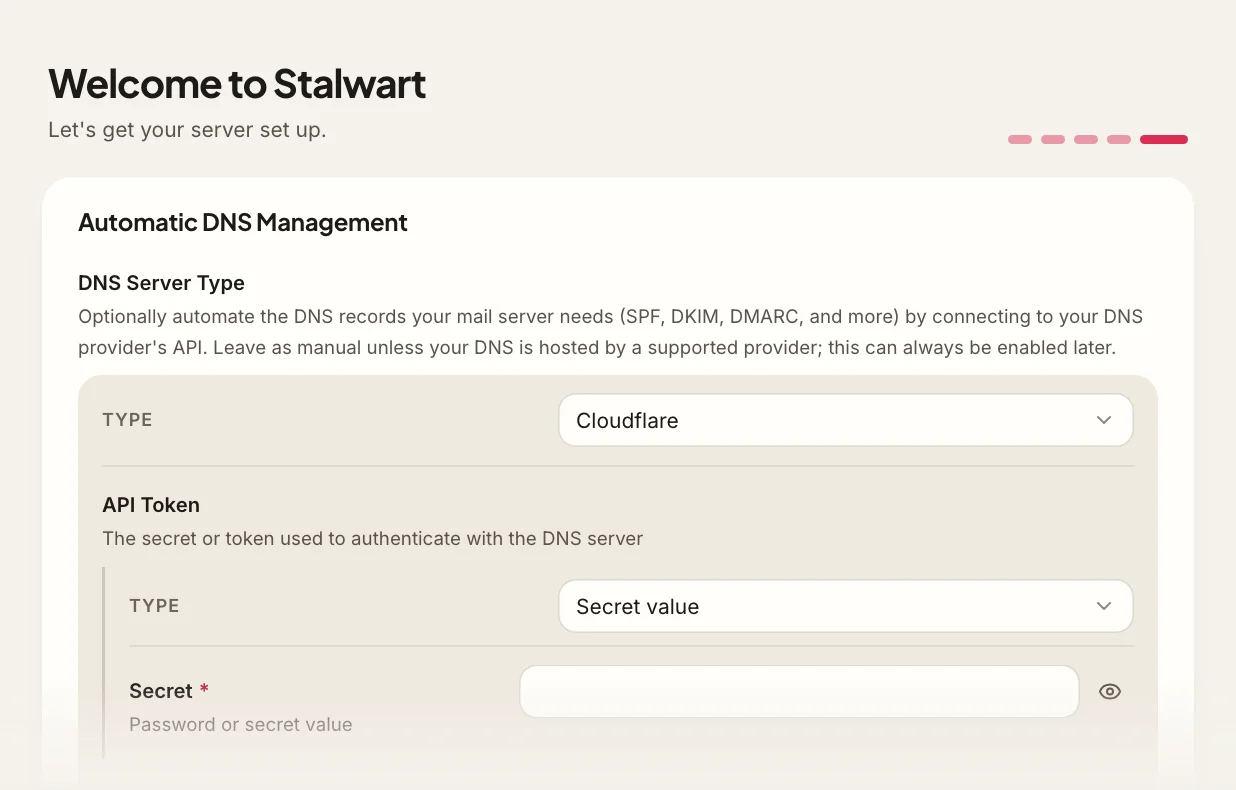
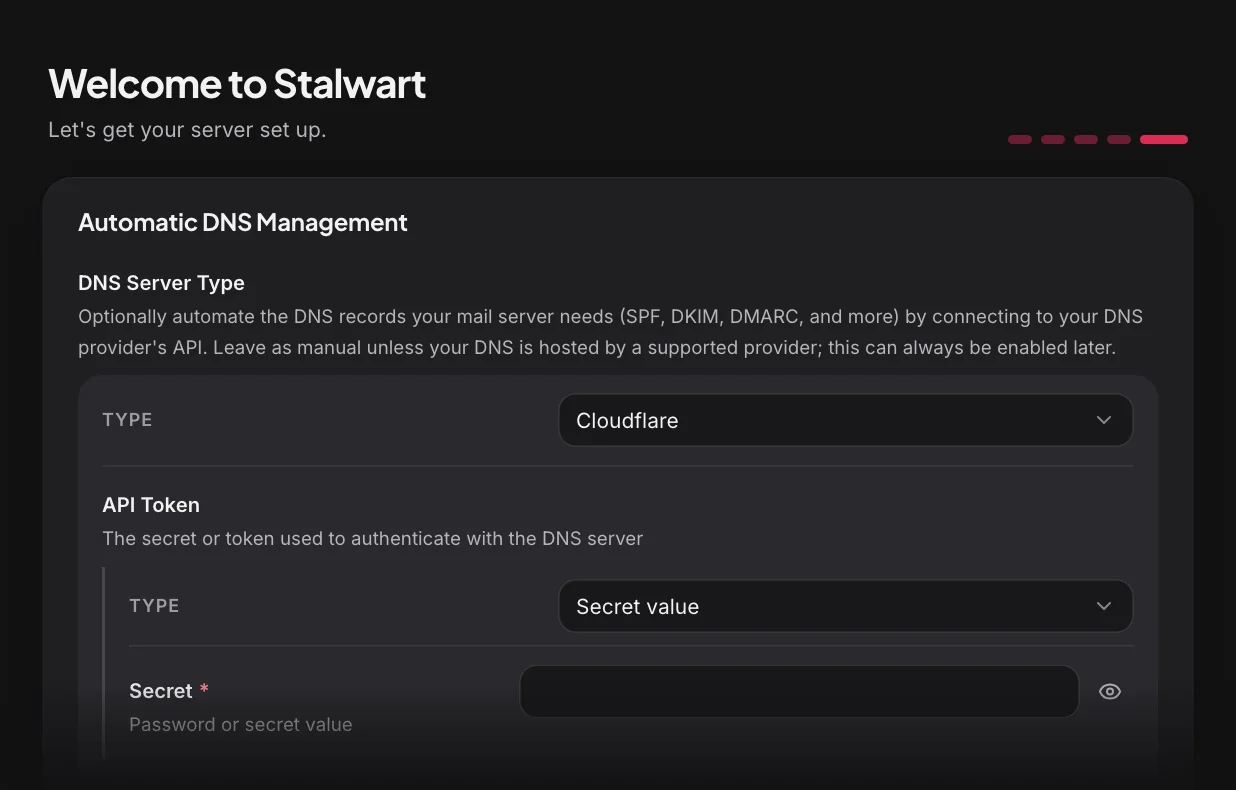
A mail domain needs a set of DNS records, and several of them change while the server runs: DKIM keys are replaced periodically, and each new key needs its own record. With automatic DNS management, the server writes these records through the API of the DNS provider that hosts the domain’s zone and keeps them current, so that they never have to be copied by hand. In DNS Server Type, select the provider that hosts the zone, and enter the API credentials that the screen then asks for, which for most providers is a single API token, together with a short Description that names the provider connection in the WebUI. DNS providers lists the supported providers, among them Cloudflare, Route 53, Google Cloud DNS and any DNS server that accepts RFC 2136 updates, together with the credentials each one needs. The credentials must allow the server to list, create, replace and delete records in the zone, and DNS provider notes gives the minimum permissions for common providers.
A provider also simplifies the certificate. With a provider, the server proves to Let’s Encrypt that it controls the domain with the DNS-01 challenge, which publishes a temporary TXT record in the zone, so the validation needs no inbound connection. The server requests the certificate after the restart, as soon as it has published the DNS records.
Keep Manual DNS server management only when the zone’s provider is not supported, or when the zone must stay under manual control. The server then computes the records and lists them in a zone file, and the administrator copies them to the provider in Step 6. This choice has two consequences. First, the DKIM keys are never rotated, because the server cannot publish the record of a new key. Second, Let’s Encrypt validates the certificate with the TLS-ALPN-01 challenge, for which it connects to the server on port 443 under every name in the certificate: the mta-sts, autoconfig, autodiscover and ua-auto-config names under the domain, and the server hostname when it lies within the domain. Before the restart in Step 4, therefore, create a CNAME record for each of these four names that points at the server hostname, for example mta-sts.example.com. CNAME mail.example.com., and make sure that port 443 is reachable from the internet. Otherwise the first certificate order fails, and the server retries it only later.
The choice can be changed after the setup, as described in Automatic DNS records.
After Finish setup is pressed, the last screen shows the credentials of the new administrator account: the address admin@<domain> and a random 16-character password:
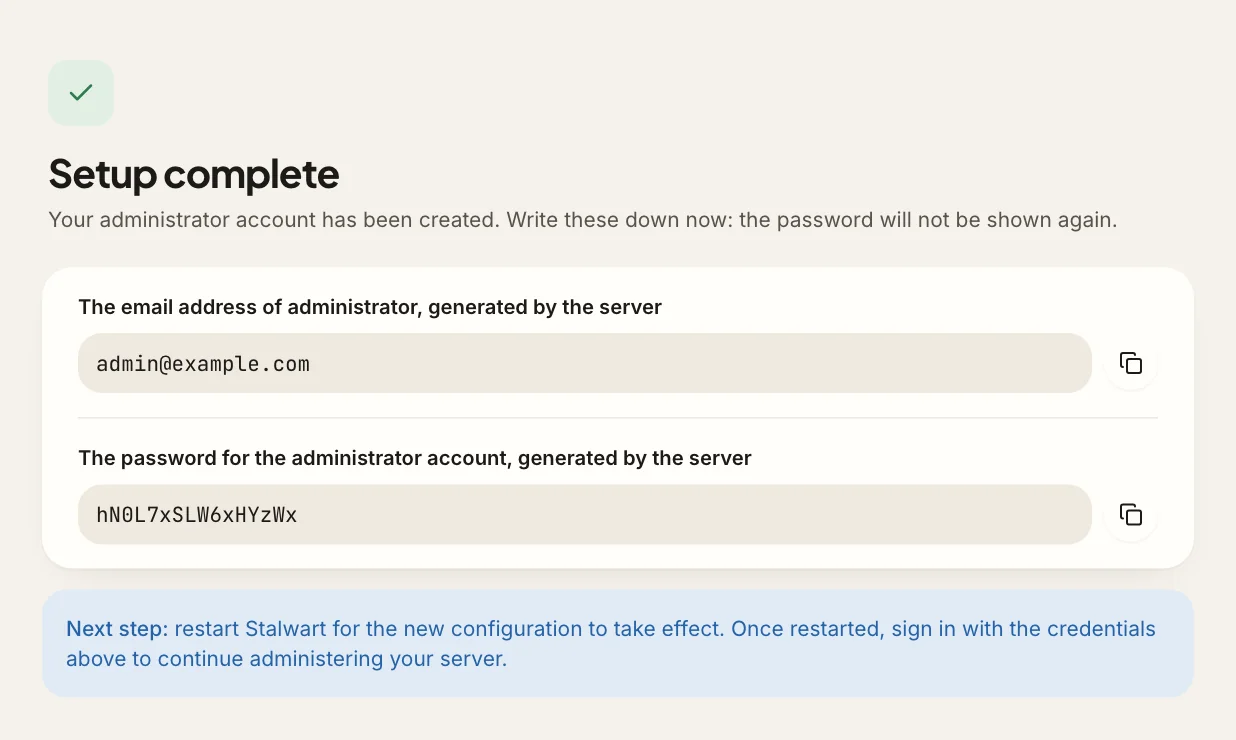
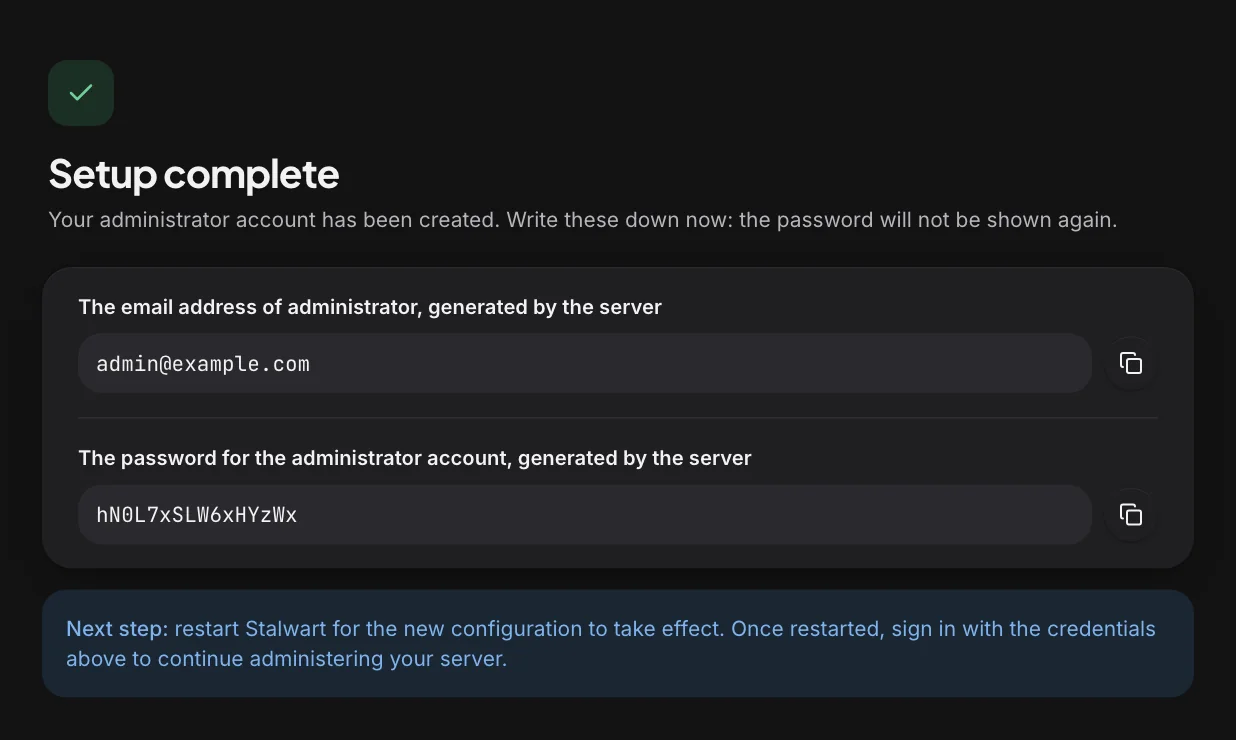
Record both before leaving the page, because the wizard shows the password only on this screen and does not write it to the log. The temporary bootstrap password from Step 2 is no longer needed.
The wizard has now written the configuration file. The server, however, keeps running in bootstrap mode and serves only the wizard until it is restarted.
Step 4: Restart the server
Section titled “Step 4: Restart the server”The wizard has written the configuration, but the server reads it only when it starts. A restart therefore ends bootstrap mode and starts the mail services.
Restart the server with the command for the host’s service manager:
| Service manager | Command |
|---|---|
| systemd | sudo systemctl restart stalwart |
| SysV init | sudo service stalwart restart |
| launchd | sudo launchctl kickstart -k system/stalwart |
| rc.d | sudo service stalwart restart |
The server then starts with the configuration from the wizard and opens the mail, IMAP, POP3, ManageSieve and HTTPS ports.
From now on, it writes its log to /var/log/stalwart/stalwart.log.<date>. Errors raised before the configuration is loaded go to the server output listed in Service definitions instead.
If something goes wrong in this step, Step 4: Restart under Common problems lists the usual causes and their fixes.
Step 5: Sign in to the WebUI
Section titled “Step 5: Sign in to the WebUI”The WebUI is the server’s web administration interface, and the rest of the installation takes place in it. After the restart, the server serves it over HTTPS on the server hostname. Open https://<hostname>/admin in a browser, where <hostname> is the server hostname entered in the wizard, and sign in with the administrator address and password shown on the wizard’s last screen. The WebUI page describes its sections.
The first visit may show a certificate warning. At its first regular start the server requests the TLS certificate chosen in the wizard, with automatic DNS management once it has published the DNS records, and until the certificate arrives it presents a self-signed certificate for localhost. Do not accept the warning, because once it is accepted the browser can no longer detect an interception of the connection. Wait a short while and reload the page instead.
Once the certificate is in place, the browser connects without a warning and shows a certificate issued by Let’s Encrypt for the hostname. After sign-in, the administration interface opens, and the default domain appears in the domain list.
If something goes wrong in this step, Step 5: WebUI sign-in under Common problems lists the usual causes and their fixes.
Step 6: Publish the DNS records
Section titled “Step 6: Publish the DNS records”So far the server works, but the rest of the internet does not know about it. Other mail servers find and trust a domain through DNS: MX records name the server that receives the domain’s mail, and SPF, DKIM and DMARC records let receivers check that a message sent in the domain’s name really comes from its server. Further records let mail clients find their settings automatically. This step makes sure that all of these records are in the domain’s zone. The server has already computed them for the domain, so with automatic DNS management it has published most of them itself, and with manual DNS management the work consists of copying them to the DNS provider. DNS records explains each of them.
Automatic DNS management
Section titled “Automatic DNS management”When a DNS provider was selected on Screen 5 of the wizard, the server published the DKIM, SPF, DMARC, SRV, MTA-STS, TLS reporting and autoconfiguration records through the provider’s API shortly after the restart, and it keeps them current from then on. The wizard leaves two record types out of this set. The CAA record is optional and can be added later, as described in DNS records. The MX record, however, is what directs the domain’s mail to the server, so create it in the provider’s control panel: an MX record at the domain that points at the server hostname, such as:
example.com. MX 10 mail.example.com.The domain’s zone file, described below, lists the same MX record with the values for this server.
Manual DNS management
Section titled “Manual DNS management”In the WebUI, open the domain list ( Management › Domains › Domains), open the menu next to the domain and select View Zone File. The zone file is in BIND format, which most DNS providers can import as a whole. Alternatively, create its records one by one in the provider’s control panel.
Besides the mail records, the zone file contains the CNAME records for the mta-sts, autoconfig, autodiscover and ua-auto-config names that were created before the restart, because the TLS certificate needs them. It does not contain the A and AAAA records of the server hostname, because those exist before the installation starts, as listed in the system requirements.
Once published, each record returns the value shown in the zone file when queried through a public resolver. The server computes the zone file for every domain, whether or not it publishes the records itself. The following queries check the main records, with the DKIM selector name, such as v1-ed25519-20260101, taken from the zone file:
dig +short @1.1.1.1 MX example.comdig +short @1.1.1.1 TXT example.comdig +short @1.1.1.1 TXT _dmarc.example.comdig +short @1.1.1.1 TXT v1-ed25519-20260101._domainkey.example.comIf the certificate warning of Step 5 remained because records were missing, no further action is needed: once they resolve, the next attempt of the order obtains the certificate.
If something goes wrong in this step, Step 6: DNS records under Common problems lists the usual causes and their fixes.
Step 7: Create a user account
Section titled “Step 7: Create a user account”The administrator account from the wizard holds every permission and is meant for administration only. A mailbox is set up in mail and calendar clients on several devices, each of which stores its password, so it should not carry those permissions. This step therefore creates a separate user account, the mailbox that sends and receives the test message in Step 8.
In the WebUI, open Management › Directory › Accounts and create a user account. Its name becomes the local part of the address, so the name jane in the domain example.com gives the address [email protected]. Select the default domain. The form has no password field: add the password under Authentication › Credentials with Add item, which creates a password credential, and give it at least 8 characters, the minimum length of the default password policy. Managing accounts covers aliases, groups, quotas, suspension and the other account tasks, together with their CLI and API equivalents.
Once saved, the account appears in the account list with its email address. To confirm that it works, sign in at https://<hostname>/account with the full address and the password. This opens the Account Manager, the part of the WebUI in which users manage their own credentials and settings.
If something goes wrong in this step, Step 7: User account under Common problems lists the usual causes and their fixes.
Step 8: Send and receive a test message
Section titled “Step 8: Send and receive a test message”The last step confirms that mail flows in both directions: that the server can deliver to other providers and that they accept its mail, and that other providers can reach it. Add the new account to a mail client such as Thunderbird, Apple Mail or Outlook by entering its email address and password. Because the DNS records from Step 6 are in place, the client finds the server settings itself. A client that asks for the settings needs the following values:
| Setting | Value |
|---|---|
| Incoming server | IMAP, mail.example.com, port 993, SSL/TLS |
| Outgoing server | SMTP, mail.example.com, port 465, SSL/TLS |
| User name | The full email address, [email protected] |
Send a message from the account to a mailbox at another provider, then reply to it from that mailbox.
The message should arrive in the inbox at the other provider, not in the spam folder. Its headers, which most providers show with an option such as “Show original”, report pass for SPF, DKIM and DMARC. The reply arrives in the account’s inbox.
If something goes wrong in this step, Step 8: Test message under Common problems lists the usual causes and their fixes.
Special cases
Section titled “Special cases”The following cases depart from the common path of this tutorial, and several of them set environment variables. The service reads the environment file at every start, so the administrator sets a variable by uncommenting or adding it in that file and restarting the service with the command of Step 4, and removes it the same way. The environment file is /etc/stalwart/stalwart.env, or /usr/local/etc/stalwart/stalwart.env on FreeBSD and <prefix>/etc/stalwart.env for an installation made with a prefix.
Reverse proxy
Section titled “Reverse proxy”When clients reach the server through a reverse proxy, or on an HTTPS port other than 443, the URL in the browser differs from https://<hostname>, and the sign-in in Step 5 fails with Client metadata documents are disabled until the server is configured with the URL clients use. Reverse proxy describes that configuration, which belongs before the restart in Step 4, together with the proxy itself.
Complete the setup wizard directly on port 8080, not through the proxy, because during the setup the WebUI accepts sign-in only from the address and scheme on which the request arrives. The Reverse proxy page also explains how the clients’ IP addresses reach the server, which matters because auto-ban, the blocking of addresses after repeated failed sign-ins, and rate limits depend on them.
External directory
Section titled “External directory”When an LDAP server, an SQL database or an OpenID Connect identity provider was selected as the directory in the wizard, the last screen shows no administrator account, because accounts from the directory exist in Stalwart only after their first sign-in. The administrator therefore promotes the first administrator after the restart in Step 4, with the help of the recovery administrator. This is a credential defined by the STALWART_RECOVERY_ADMIN environment variable, and it does not depend on the directory. Set the variable and restart, have the future administrator sign in once, and assign an administrator role to that account while signed in as the recovery administrator. Then remove the variable and restart again. Promoting the first administrator gives the procedure, and Choosing a directory explains the directory options.
The directory’s own tools create the accounts, so Step 7 is replaced by an existing account of the directory.
HTTPS not available yet
Section titled “HTTPS not available yet”In normal operation, the WebUI accepts sign-in only over HTTPS on the server hostname. On port 8080, sign-in fails with Unknown client id, whatever the account. When HTTPS cannot work yet, for example because the hostname does not resolve or port 443 is not reachable, the WebUI is still available in recovery mode. Set STALWART_RECOVERY_MODE=1 and STALWART_RECOVERY_ADMIN=admin:<password>, restart, and sign in at http://<host>:8080/admin with that credential.
Recovery mode runs no mail services. It serves only the WebUI and the management API, on port 8080 and without protection against password guessing, so keep the port off the internet, as described in Protect the setup listener. Once HTTPS works, remove both variables and restart.
The same procedure regains access when no administrator can sign in, for example because the external directory is unreachable or the administrator account was deleted. Regain access describes this use.
Automated installation
Section titled “Automated installation”A deployment tool can configure a new server without the wizard, in one of two ways. The wizard’s fields correspond to the Bootstrap object, and while the server runs in bootstrap mode, a tool can submit the same object through the JMAP API. Alternatively, it can write config.json and then apply a complete configuration as a plan with the CLI in recovery mode. Bootstrap mode and Declarative deployments describe both methods.
Reading the zone file with the CLI
Section titled “Reading the zone file with the CLI”The zone file of Step 6 is also available in the read-only dnsZoneFile field of the domain, which the CLI can read. The first command lists the domains with their ids, and the second reads the field of one of them:
$ stalwart-cli query domain$ stalwart-cli get domain <id> --fields dnsZoneFileInstallation details
Section titled “Installation details”The tutorial does not depend on the following details, but they matter when the server is maintained later: where its files are, how its service is defined, and what the script’s options change.
Installation layout
Section titled “Installation layout”The script creates the following files and directories:
| Item | Linux and macOS | FreeBSD |
|---|---|---|
| Binary | /usr/local/bin/stalwart | /usr/local/bin/stalwart |
| Configuration file | /etc/stalwart/config.json | /usr/local/etc/stalwart/config.json |
| Environment file | /etc/stalwart/stalwart.env | /usr/local/etc/stalwart/stalwart.env |
| Data directory | /var/lib/stalwart/ | /var/db/stalwart/ |
| Log directory | /var/log/stalwart/ | /var/log/stalwart/ |
The configuration file does not exist after the installation, because the setup wizard creates it in Step 3. The server runs as a dedicated service account, stalwart on Linux and FreeBSD and _stalwart on macOS, which owns the configuration, data and log directories. The environment file holds optional environment variables, and the service reads it at every start. The script writes every variable in it commented out, so none takes effect until it is uncommented.
Service definitions
Section titled “Service definitions”The script registers the service with the host’s service manager, enables it at boot and starts it. The location of the service definition, and the destination of the server output, depend on the service manager:
| Service manager | Service definition | Server output |
|---|---|---|
| systemd (most Linux distributions) | /etc/systemd/system/stalwart.service | journalctl -u stalwart |
| SysV init (Linux without systemd) | /etc/init.d/stalwart | /var/log/stalwart/stalwart.log |
| launchd (macOS) | /Library/LaunchDaemons/stalwart.plist, label stalwart | log show --predicate 'process == "stalwart"' |
| rc.d (FreeBSD) | /usr/local/etc/rc.d/stalwart, enabled with stalwart_enable=YES | /var/log/stalwart/stalwart.log |
Each service runs the server under the service account with a file descriptor limit of 65536. An unprivileged account cannot normally bind ports below 1024, which the mail protocols use, so each service manager grants that permission in its own way. The systemd unit grants the CAP_NET_BIND_SERVICE capability. With SysV init, the script gives the binary the cap_net_bind_service file capability with setcap, and where setcap is not installed, the init script starts the server as root with RUN_AS_USER and RUN_AS_GROUP set. The rc.d script always starts it that way, so the server binds its ports first and then switches to the service account.
The systemd unit also declares a conflict with postfix.service, sendmail.service and exim4.service, which use port 25 as well, so starting one of them stops Stalwart, and starting Stalwart stops them. On macOS, the launchd daemon restarts the server whenever it exits. With SysV init and rc.d, stalwart.log is rotated weekly and four compressed copies are kept, through logrotate when /etc/logrotate.d exists and through newsyslog on FreeBSD.
Other installation options
Section titled “Other installation options”Given a directory as its only argument, for example sudo sh install.sh /opt/stalwart, the script installs everything under that prefix, in <prefix>/bin, <prefix>/etc, <prefix>/data and <prefix>/logs, and SysV init and rc.d send the server output to <prefix>/logs/stalwart.log. Such an installation needs different directories in the setup wizard. On the storage screen of Step 3, replace the proposed directory with <prefix>/data, the directory the script created. On the logging screen, keep Log file and replace the proposed directory with <prefix>/logs, because the script creates no /var/log/stalwart/ directory for such an installation. The --fdb option installs the build for FoundationDB data stores, described in FoundationDB, and --help prints the usage.
Common problems
Section titled “Common problems”The following problems are the ones that most often occur during the installation, grouped by the step at which they appear. Troubleshooting installation lists the rarer problems by symptom.
Step 1: Installation script
Section titled “Step 1: Installation script”- Another mail server is installed. Many distributions install Postfix or Exim by default, and while it runs, Stalwart cannot bind port 25. Stop and disable it before Step 4.
Step 2: Setup wizard access
Section titled “Step 2: Setup wizard access”- The password is rejected. The server generates a new password at every start in bootstrap mode, so only the most recent block in the output is valid. To work with a known password instead, uncomment
STALWART_RECOVERY_ADMINin the environment file, set it toadmin:<password>and restart the service. The server then generates no temporary password. Remove the variable once the setup is complete, as described in Securing the server. - The page does not load. The setup listener uses plain HTTP, so the address must start with
http://, nothttps://. The port is 8080 unlessSTALWART_RECOVERY_MODE_PORTis set in the environment file, and the server output names the port in use:No configuration file was found. Port <port> is open for initial setup.
Step 4: Restart
Section titled “Step 4: Restart”- The server exits at start. The last lines of the service output give the reason. A configuration file that exists but cannot be used stops the server with
Startup failed: Failed to read data store settings at <path>: <error>orStartup failed: Failed to parse data store settings at <path>: <error>. The server also stops when the data directory is owned by a user other than the service account, because it cannot open the directory. - A port fails to bind. The server skips that listener, starts the others, and logs a
registry.build-errorevent for the listener with the reasonFailed to bind to <address>: <error>. On port 25 the cause is usually another mail server installed with the operating system, such as Postfix or Exim, which has to be stopped and disabled. A port fails to bind lists the other causes.
Troubleshooting installation describes the rarer problems after the restart: the setup wizard appearing again and a data store of another Stalwart version.
Step 5: WebUI sign-in
Section titled “Step 5: WebUI sign-in”- The certificate warning does not go away. With automatic DNS management, the DNS update may have failed, in which case the server has not requested the certificate yet, as described under Step 6. Otherwise the certificate order is failing, and the log records each failure as an
acme.auth-errororacme.order-invalidevent with the reason. Certificate not issued describes the usual causes. - The sign-in page shows
Unknown client idorClient metadata documents are disabled. The WebUI was opened on an address the server does not accept for sign-in. In normal operation the server accepts the WebUI only over HTTPS on the server hostname. Over plain HTTP, port 8080 included, the page showsUnknown client id. Over HTTPS on an IP address, on the mail domain or on any other host name, it showsClient metadata documents are disabled: the WebUI identifies itself by the address in the browser, the server does not recognise that address as its own, and the message names a setting for third-party applications that is not the cause. Openhttps://<hostname>/admin. The restriction does not apply during the setup and in recovery mode, when the WebUI works over plain HTTP on the address it was opened on. /adminreturns404 Not Found. The server downloads the WebUI from GitHub at its first start, and this download failed, usually because a firewall blocks outbound HTTPS. The log then contains aresource.errorevent. WebUI describes how to allow the download or host the WebUI internally.- HTTPS on the hostname cannot work yet, for example because the hostname does not resolve yet. In normal operation the WebUI accepts sign-in only over HTTPS on the server hostname, but Special cases describes how to use it over plain HTTP in the meantime.
Certificate warning in the browser describes the rarer certificate problems: a hostname outside the default domain and a test server without public DNS.
Step 6: DNS records
Section titled “Step 6: DNS records”- Records are missing with automatic DNS management. The update through the provider’s API failed, most often because the credentials entered in the wizard are wrong or lack access to the zone. The provider’s answer is recorded in the failed task, and Failures describes when the server retries the update and how to run it again once the credentials of the DNS provider ( Settings › Network › DNS › DNS Providers) are corrected. The server requests the certificate only after the records are published, so the certificate warning of Step 5 remains until then.
- The domain already has an SPF record, for example from a previous mail provider, and the records are published by hand. A domain can hold only one record starting with
v=spf1, and with two, SPF fails for all mail of the domain. Merge the entries into one record, keeping the senders that still send mail for the domain. - The MX record still points at another provider. Other servers keep delivering the domain’s mail there until the old MX records are removed. If existing mailboxes have to be moved first, see Migrating from another system before changing the MX records.
- A query returns nothing or an old value. Either the provider has not published the change yet, or a resolver still holds the previous answer until its time to live expires. To tell the two apart, query the provider’s authoritative name server directly with
dig @<name server>. - Mail is signed but receivers report a DKIM failure. The keys generated by the wizard sign outgoing mail from the moment the server starts, but receivers cannot verify the signatures until the DKIM records are published. With manual DNS management the keys are also never rotated, for the reasons given in DKIM key rotation, and Automatic DNS records describes how to let the server publish the records and rotate the keys.
Step 7: User account
Section titled “Step 7: User account”- The password is refused. The form shows
Password must be at least <n> characters long.or another policy message. The password does not meet the password policy, which sets a minimum length and rejects passwords that are too easy to guess. Passwords describes the policy settings. - The address is refused with
An item with the same key already exists.The address is already in use, because every address belongs to exactly one account, group or mailing list, and the administrator account already usesadmin@<domain>.
Step 8: Test message
Section titled “Step 8: Test message”- The client cannot sign in. IMAP answers
NO [AUTHENTICATIONFAILED] Authentication failedand SMTP answers535 5.7.8 Authentication credentials invalid.. Check that the user name is the full email address. Once an address has failed to sign in more often than the limit allows, by default 100 per day, the server bans the address and closes its connections without a reply, and Auto-ban explains how to clear the block. - Sending fails with
503 5.5.1 You must authenticate first.The client connects to port 465 without signing in. Enable authentication for the outgoing server in the client, with the same credentials as the incoming server. - Sending fails with
501 5.5.4 You are not allowed to send from this address.The sender address set in the client is not one of the account’s addresses. - The message stays in the queue. Open the message under Management › Emails › Queued to see why it was not delivered. An error of type connection error with the message
Connection timeoutmeans that the server cannot reach other mail servers on port 25, which many cloud and residential providers block, so ask the provider to lift the block or send outgoing mail through a relay host as described in Outbound routing. The delivery test under Management › Emails › Delivery tests traces a delivery step by step without sending anything. - The message is rejected or lands in the spam folder. The receiving provider does not trust the server yet. Check that the reverse DNS of the server’s address returns the hostname, as listed in the system requirements, that the SPF, DKIM and DMARC records of Step 6 resolve, and which check the headers report as failed. A message is not delivered covers the remaining causes.
- The reply does not arrive. The other provider cannot reach the server, either because the MX record is not visible yet or because inbound port 25 is blocked by a firewall or the hosting provider. A bounce message with
550 5.1.1 Mailbox does not exist.has a different cause: the reply was sent to an address that has no account.
Next step
Section titled “Next step”The server now sends and receives mail. Some protections depend on how the server is deployed and are therefore not active by default, so before the server is used in production, remove the plain HTTP listener on port 8080 unless a reverse proxy connects to it, remove STALWART_RECOVERY_ADMIN if it was set, and review the remaining settings in Securing the server.
When something goes wrong, Troubleshooting installation lists the installation problems by symptom, and Troubleshooting covers the problems of a running server, such as a rejected message or a failed sign-in. The FAQ answers the most frequent questions, and questions not covered by the documentation can be asked on the community forum.