Operations
Once a project has passed pre-flight and its first copies have started, the work moves from the wizard to the operation screens: the Run dashboard, the account detail, the two cutover screens and “Verify and report”. This page describes what each operation does and how to drive it from the three front ends. The steps that lead up to it are in Server migration and Account migration, and the account states, the runner and the reasons for the absence of a rollback are introduced in Concepts.
The operation screens show no CLI equivalent, unlike the form steps, so the commands are given on this page. Every account action of the CLI takes --accounts ADDRESS,... or --all. Some actions (run, delta, pause, resume, verify) default to the open selection; the others need one of the two flags and otherwise fail with, for example, skip needs --accounts or --all. An address that is the source address of one account and the target address of another is written source:ADDRESS or target:ADDRESS.
Run dashboard
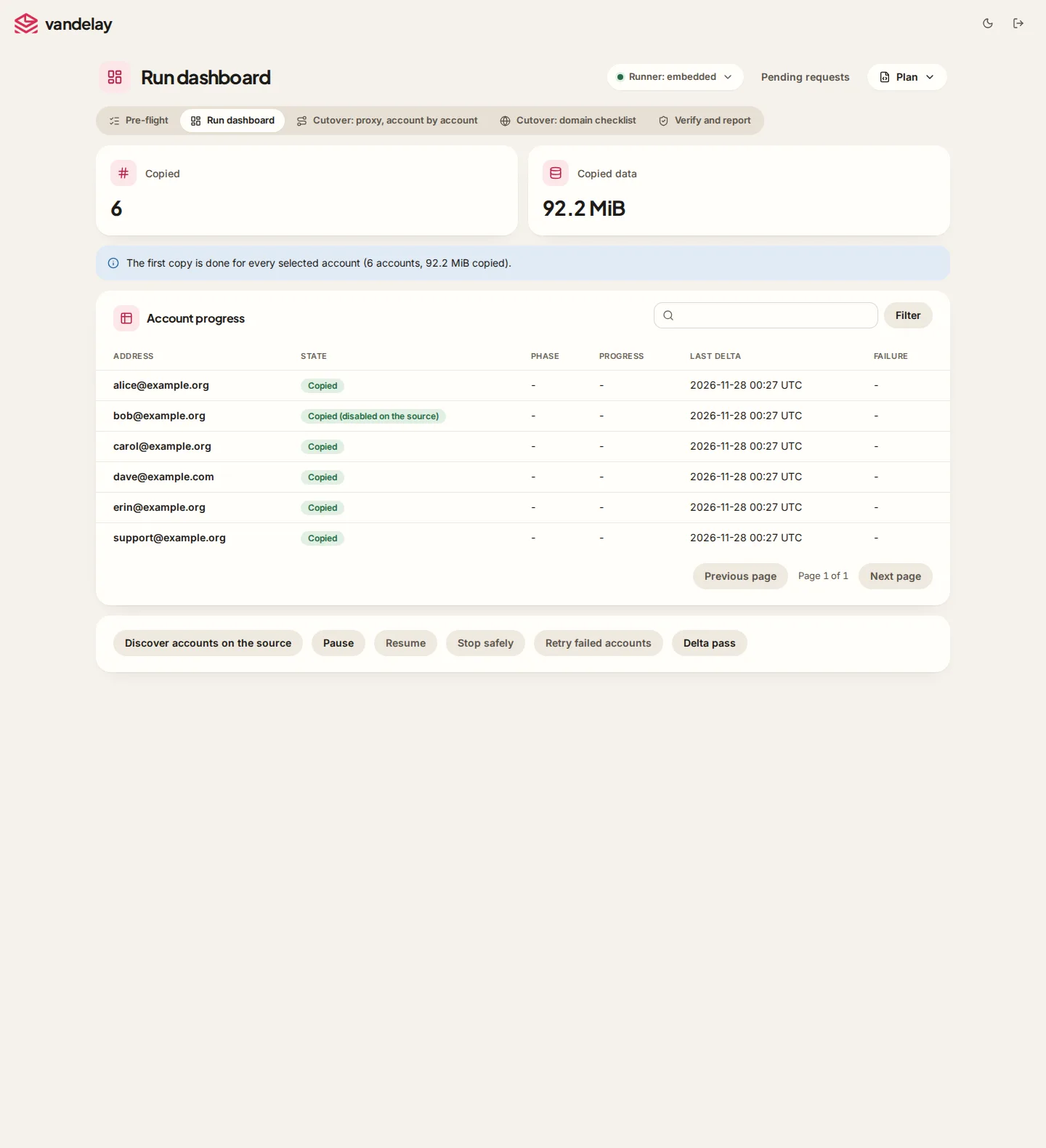
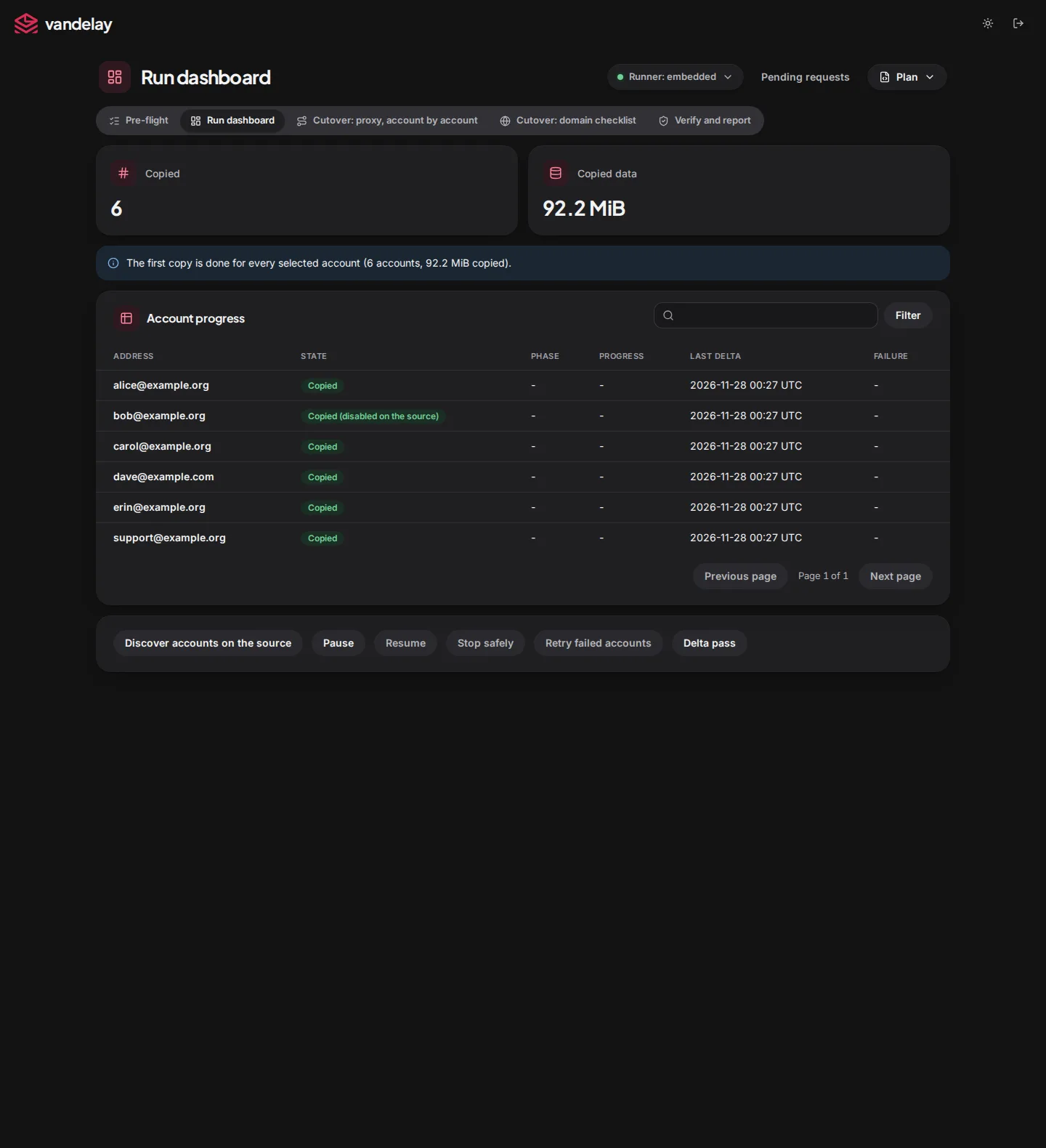
Section titled “Run dashboard”The Run dashboard is the overview of a running migration. Its summary counts the accounts in each state, from Discovered to Completed, and shows the amount of data copied so far. The “Accounts in progress” table lists each account with its state, the phase of its current task, its progress, the time of its last delta and its last failure. A live line summarises how many accounts are running, how many are throttled and how many have failed, and alerts name an account that needs a decision, an account that is no longer on the source, and a server that is throttling an account.
The dashboard’s actions are:
- Discover accounts on the source: runs discovery again, to pick up new or removed accounts.
- Pause and Resume: hold and release accounts, as described in Pause, resume and stop.
- Stop safely: stops the runner at the next safe point.
- Retry failed accounts: retries the accounts whose last task failed.
- Delta pass: brings the selected accounts up to date, as described in Delta passes and catch-up.
- Switch now (proxy mode only): switches the selected accounts.
Open Run dashboard in the “Operations” navigation. The table can be filtered, sorted and paged; its rows are selected with their checkboxes, and the actions act on the selected (“open”) accounts. An address in the table opens the account’s detail.
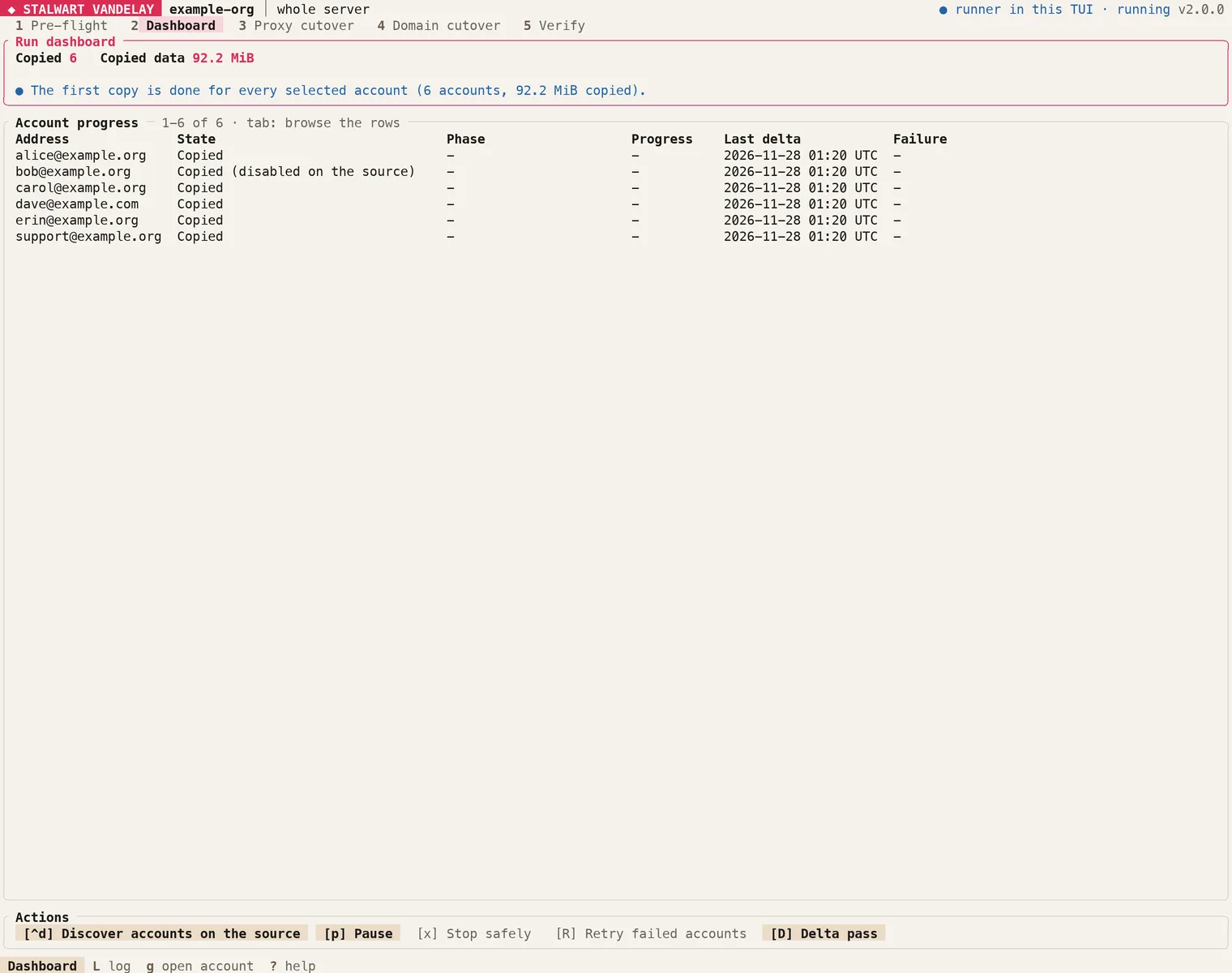
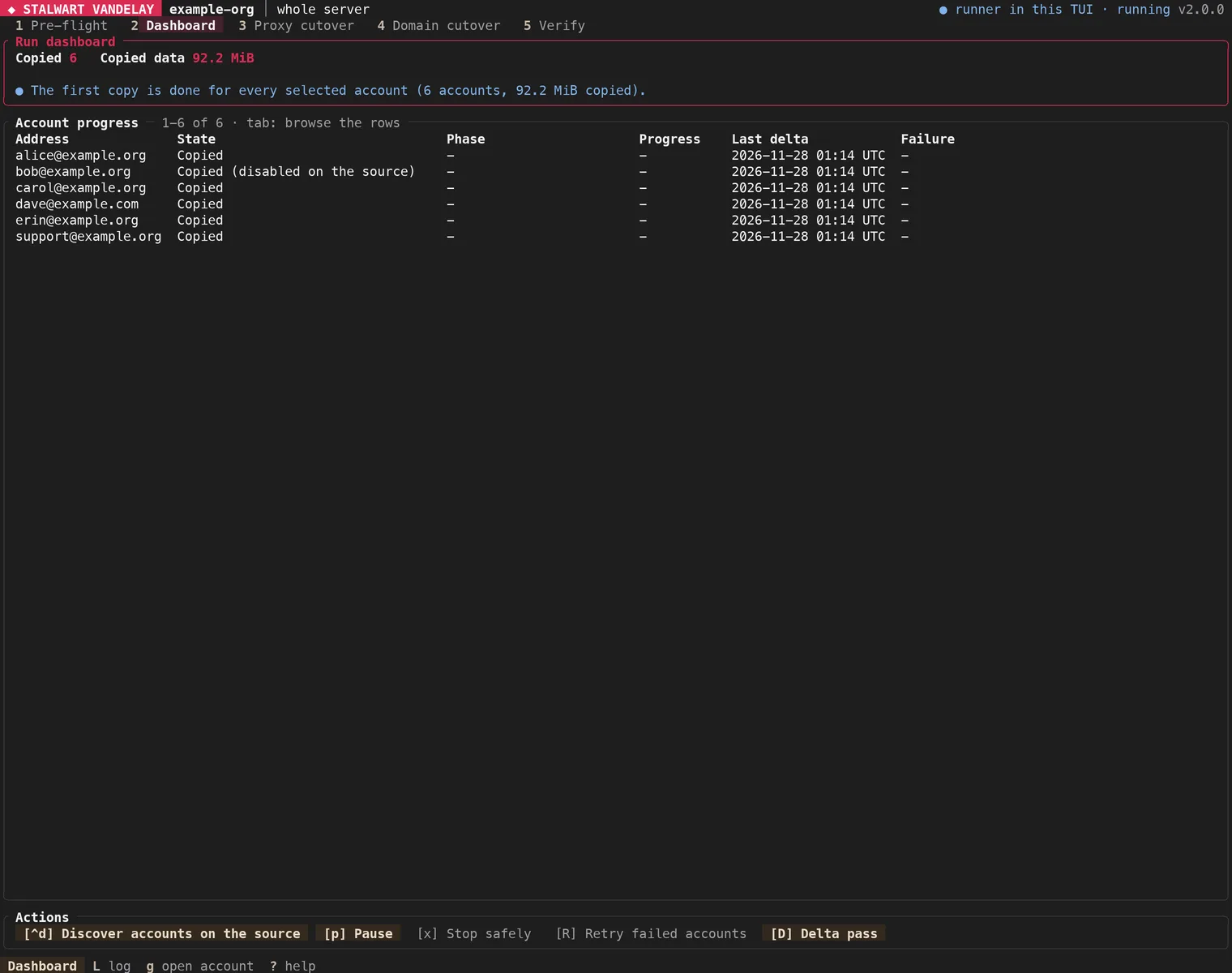
Press 2 to open the dashboard (and 2 again to reload it). Rows are selected with space, and the action keys act on the selection: R retries failed accounts, D runs a delta pass, S switches every account that can (after asking), p pauses or resumes, and x stops safely. L shows or hides the “Warnings and errors” pane, and g opens an account by its address.
The following commands show the state of the project, retry the failed accounts and start a delta pass on two accounts:
vandelay migrate statusvandelay migrate run --retry-failedvandelay migrate status --json prints the same state as JSON, with each account’s state, current switch step, holds and last failure.
Account detail
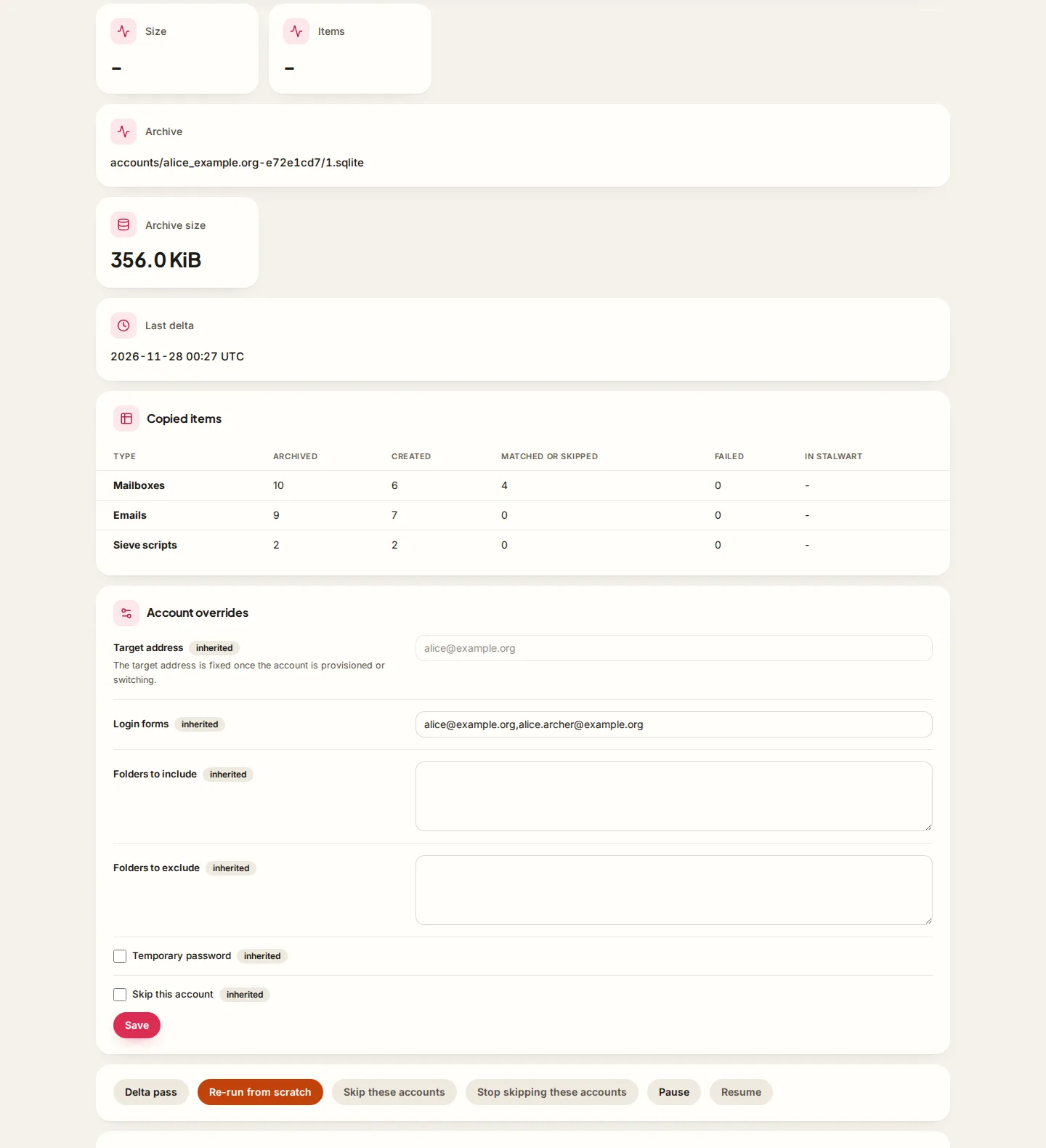
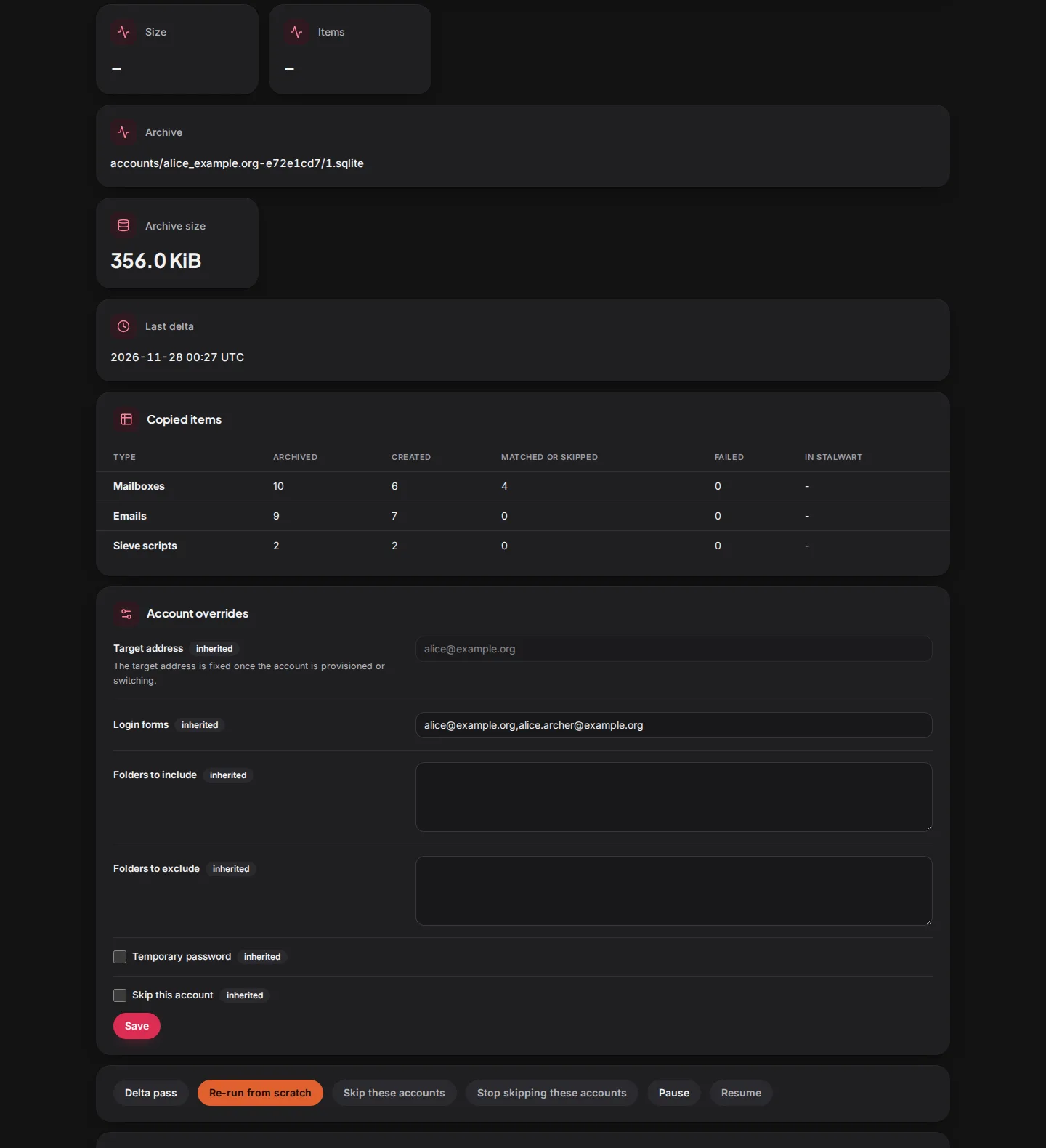
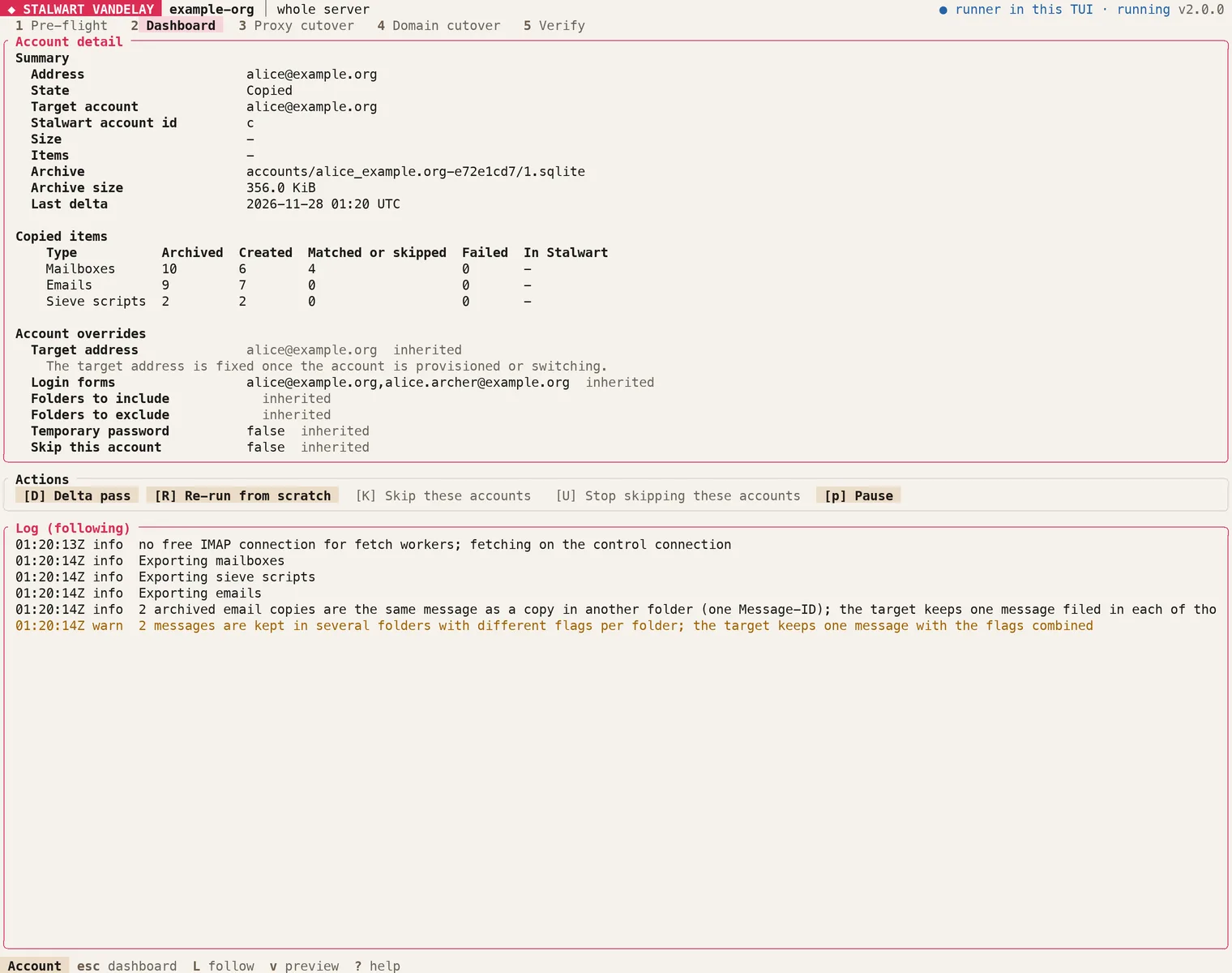
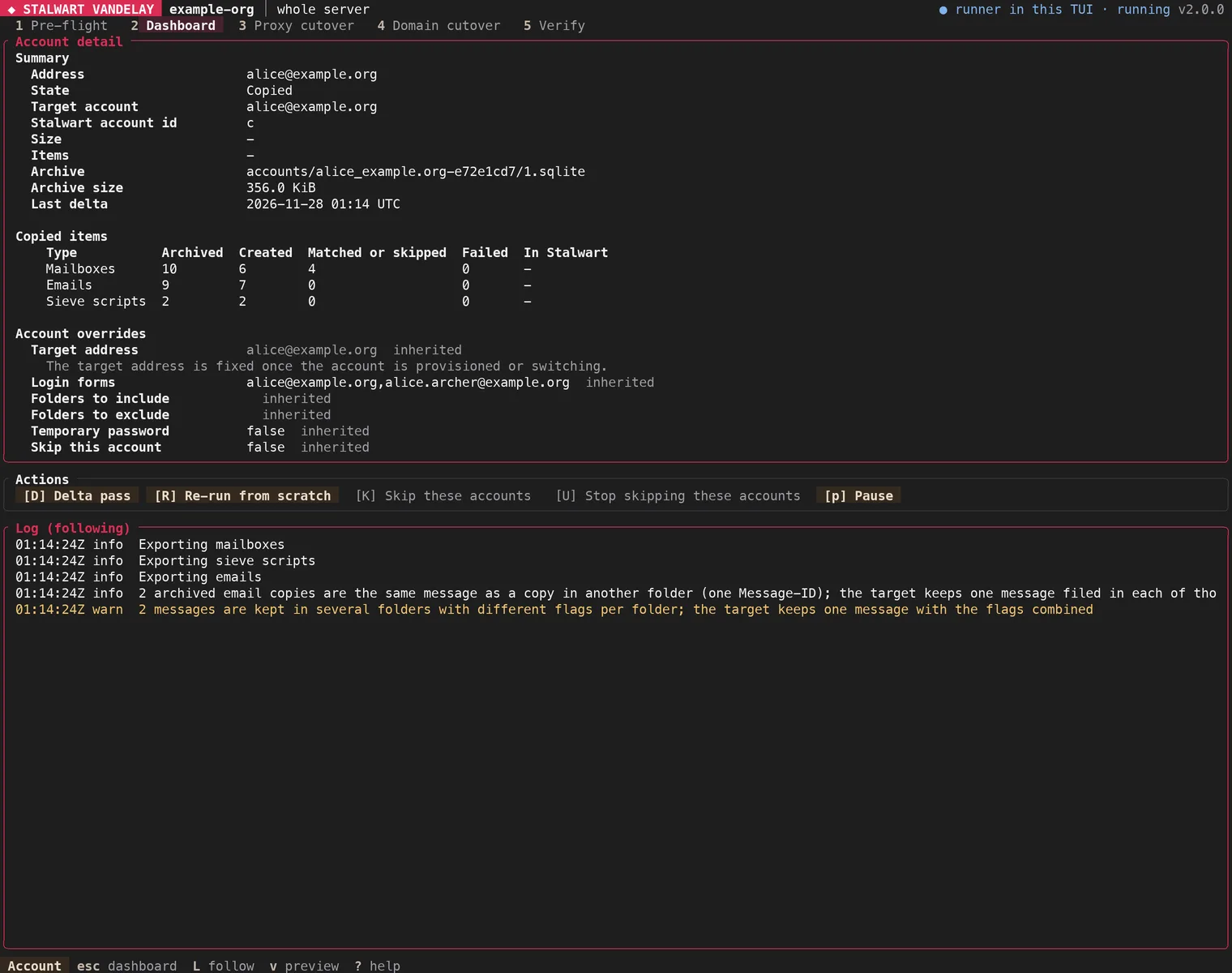
Section titled “Account detail”The account detail shows one account: its address and state, the target account and its Stalwart account id, the size and item count, the archive files and their size, the time of the last delta and the last failure. Below it are the account’s overrides and its log.
Overrides change this account without changing the plan for the others: the target address, the login forms that the proxy maps at the switch, folders to include or exclude, a forced temporary password, and skipping the account. Each override shows whether it is overridden or inherited from the plan. The target address can no longer change once the account is provisioned or switching.
The actions on the detail act on this account alone: a delta pass, a switch, pause and resume, skip and unskip, and Re-run from scratch, which copies the account again from the beginning. Re-running is possible only before the switch; it asks for a confirmation.
Click an address on the dashboard. The “Account overrides” block saves each override with its own Save button, and the “Account log” follows the log live, with Show newer lines to fetch more. The archive preview links show the archived data per type. Back returns to the dashboard.
On the dashboard, press g, type the address and press enter. On the detail, D runs a delta pass, S switches the account, R re-runs it from scratch, K takes it out of the migration and U takes it back, and p pauses or resumes it. L stops or resumes following the log. v replaces the log with the archive preview; t and T move between the preview’s views, and ] and [ between its pages. esc returns to the dashboard.
The following commands show the archived mail folders of one account, force a temporary password for it, and copy it again from the beginning:
The override keys of account-set are target, login_forms, folders.include, folders.exclude, temporary_password and skip.
Delta passes and catch-up
Section titled “Delta passes and catch-up”The first copy of an account can take hours, and the account keeps changing on the source meanwhile. A delta pass reads the account again and copies what changed since the last pass, so the final copy at the switch has little left to do. Before the switch, a delta pass in proxy mode refreshes the account’s archive; in domain and copy-only modes it also writes the changes into Stalwart.
Delta passes run on the schedule set by “Delta passes” in the cutover strategy, or when the operator starts one. In domain mode, the checklist’s delta sweep runs a final pass over every account of one domain before its MX change, and the checklist reports accounts whose last delta is older than “Stale delta after”: flag and folder changes made on the source after that delta are not carried.
After the switch, catch-up passes copy what still arrived on the source, such as mail delivered there by clients or servers that had not yet moved. They only create items that are new on the source; changes to items already copied are not carried any more. Catch-up passes run on the schedule set by “Catch-up passes after the switch”, or with Delta pass on a switched account. They stop when the account is closed.
Select the accounts on the dashboard and click Delta pass, or use Delta pass on an account’s detail. In domain mode, the checklist has Delta sweep before the MX change, with the domain in its text field.
Press D on the dashboard for the selected accounts, or on an account’s detail. On the domain checklist (4), D runs the final delta pass of a domain.
The following commands run a delta pass on every account that takes one, and the delta sweep of one domain:
vandelay migrate delta --allvandelay migrate delta --sweep --domain example.orgPause, resume and stop
Section titled “Pause, resume and stop”Pausing holds accounts: a paused account starts no new task until it is resumed, which frees resources for other accounts or keeps an account untouched while its source is being checked. The running task of a paused account finishes first, and actions that need the account to change state are refused with the account is paused until it is resumed.
Stopping acts on the whole project. Stop safely asks the runner to drain: running tasks finish their current step, and the runner exits. Nothing is lost; the work continues where it stopped the next time a runner starts. A switch in progress is stopped between two of its steps, never in the middle of one.
Select accounts and click Pause or Resume on the dashboard, or on an account’s detail. Stop safely stops the work of the runner embedded in the web UI.
Press p to pause or resume the selected accounts, and x to stop safely.
The following commands pause two accounts, resume them, and stop the project’s runner while waiting for it to exit:
vandelay migrate stop --waitvandelay migrate stop reports no runner is running for this project when there is nothing to stop.
Runner
Section titled “Runner”All work of a project runs in its runner, and one runner at most holds a project at a time. The front ends hand work to the runner and display what it does, so the behaviour of a migration when a front end goes away depends on where the runner lives:
- The web UI and the TUI embed the runner. It starts once the secret store is unlocked and stops when the TUI leaves the project, when
vandelay serveexits, or when the migration is finished. Quitting the TUI while work runs asks first, withThe project's runner runs in this TUI and stops when you leave the project. Work stops at the next safe point and resumes on the next start. - A CLI command connects to the runner that holds the project, when there is one, and follows the tasks it started. Ctrl-C then detaches: the CLI prints
detached: the work continues in the <mode> runner (pid <pid>); stop it with `vandelay migrate stop`and exits with code 8, and the work goes on. - A CLI command with no runner holding the project starts one inside the CLI process, which serves the command and exits once its work is done. Ctrl-C there is a stop, not a detach: the first press lets running tasks finish their current step, the second exits at once, both with code 8.
Scheduled delta and catch-up passes run only while a runner holds the project. A migration that relies on them keeps a runner going for its whole duration: the TUI or vandelay serve left running, or vandelay migrate run under a terminal multiplexer, in a container or as a service, to which the TUI and the web UI then attach.
When a CLI command ends with work left over because the runner was stopped, it prints the runner was stopped with work left; run again to continue and exits with code 8. When accounts copied with failures or wait for the operator, it names them and exits with code 5. The full list of exit codes is in CLI reference.
Secrets that the plan sets to ask are requested by the runner when it first needs them. Every attached front end shows the request (a terminal prompt, the “Requests from the runner” page, or a TUI dialog), and the first answer wins. Without a terminal, the CLI prints <label> (<key>) is needed: set it to an env: or file: reference before running unattended, or run on a TTY to be asked.
A plan edited by hand while a runner holds the project is not used until it is applied: the runner stops starting new tasks and refuses further plan edits until vandelay migrate plan reload applies the file or vandelay migrate plan discard restores it. A reload that lowers the parallelism applies from the next task, while a raised export concurrency waits for the next runner start, which the reload reports.
Failed steps
Section titled “Failed steps”A task that fails is retried automatically, up to “Max retries” times, when its failure is of a kind that a retry can fix, such as a lost connection or an unavailable target. An account whose copy still fails afterwards shows its failure on the dashboard; Retry failed accounts retries it once the cause is fixed.
A failure during a switch stops the account at the failed step and waits for a decision, because the switch has already changed something that cannot be taken back. The dashboard alert reads Account <address> needs a decision., and the cutover screen groups the accounts by the decision they wait for:
- The archive was written with failed items (
<n> accounts: the archive was written with failed items; run again or retry, or continue anyway.): some items were refused by Stalwart while the archive was written into the new account. - A step failed (
<n> accounts: a step failed; run again or retry it, or continue once the logins have moved.): for example, the proxy did not accept a login mapping. - Verification failed (
<n> accounts failed verification; catch up and verify again, or accept the verify result.), handled as described in Verification.
Three answers are possible. Retry the failed step (retry-step) runs the failed step again once its cause is fixed; a plain vandelay migrate run does the same once per run. Continue anyway (continue-anyway) accepts the failure and moves on to the next step, which is how an account with a few refused items completes its switch. Skip, naming the account, gives up a failed switch, but only before the logins have moved: Skip, naming the account, gives up a failed switch before the logins move: the Stalwart account, its mail and memberships stay; new mail keeps arriving there until you delete it. After the logins have moved, there is no way back, as No rollback explains.
Skipping is also how an account is left out of the migration before its switch, and unskipping returns it to Selected. A skip changes only Vandelay’s record of the account: nothing is deleted from the source or from Stalwart.
On Cutover: proxy, account by account, the “Switch” table lists each account with its step, switch window, hold and pending decision. Select the accounts and click Retry the failed step, Continue anyway or Accept the verify result. Skip these accounts and Stop skipping these accounts are on the account detail.
On the proxy cutover screen (3), T retries every failed step, C continues every waiting account anyway and E accepts every failed verify; each asks first. On an account’s detail, K skips the account and U takes it back.
The following commands retry the failed step of one account, continue another one anyway and skip a third:
vandelay migrate unskip --accounts [email protected] takes the account back into the migration.
Confirmations
Section titled “Confirmations”Actions that change many accounts at once or cannot be undone ask for a confirmation that names the number of accounts concerned: switching, continuing anyway, retrying a failed step, confirming an MX change, re-running from scratch, accepting a verify result, closing accounts and finishing the project. The confirmation of a switch and of an MX change adds that Vandelay cannot undo them (Vandelay cannot undo a switch once its first step has run). The switch also offers a confirmation that temporary passwords were delivered (The temporary passwords were delivered to the users, or --passwords-delivered on the command line); it is optional, and the switch runs without it.
The confirmation is bound to the accounts it was asked for. When the set of accounts, or the state of one of them, changes between the question and the answer, the action is refused with the accounts changed since you were asked: type <n> to confirm this action for <n> accounts and asked again.
The confirmation dialog asks to type the number of accounts (Type <n> to confirm) before the action runs.
Confirmation dialogs take a capital Y, and esc cancels. The switch dialog first offers the delivery confirmation of temporary passwords as a box that space checks.
On a terminal, the CLI asks to type the number of accounts. Without a terminal, it prints the count and a token to pass back, and exits with code 1. The output looks like this, with a token that differs on every project:
type 3, the number of accounts this action affects, to confirm; add --confirm 3:5be0a7c1Running the same command again with --confirm 3:5be0a7c1 performs the action, provided that the accounts are unchanged; otherwise a new token is printed. The token is derived from the action and the accounts it covers, so a bare count is refused with a bare count is not a confirmation: run the command without --confirm and pass back the N:TOKEN it prints. The following command switches every eligible account in a script, using the token printed by the first call:
vandelay migrate switch --all --passwords-delivered --confirm 3:5be0a7c1Verification
Section titled “Verification”Verification compares an account’s archive with what Stalwart holds, either for a sample of its items or, with full depth, for every item. Besides the data, it checks that the active Sieve script is active on Stalwart, that the mail rules arrived, and that a vacation response was carried. It gives one of three verdicts: pass, pass with warnings, or fail, with the failed checks in the detail column, such as the archive has a vacation response and the target's is empty. When an account passes with warnings only because losses were recorded for it, the detail reads losses recorded: <n>, listed under Losses. Checks that could not be made are named as not compared: <checks> (nothing to compare, not reported by the target, or in use in Stalwart since the switch).
Every switch ends with a sample verification. A verification can be run again at any time on accounts that are Copied, Switched or Verified, and in copy-only mode it is the step that takes an account from Copied to Verified.
A failed verification leaves the account waiting for a decision. When the difference comes from items that are still to arrive, a catch-up pass followed by another verification resolves it. When the difference is understood and acceptable, for example items that the source holds but Stalwart refused, Accept the verify result records it and lets the account proceed.
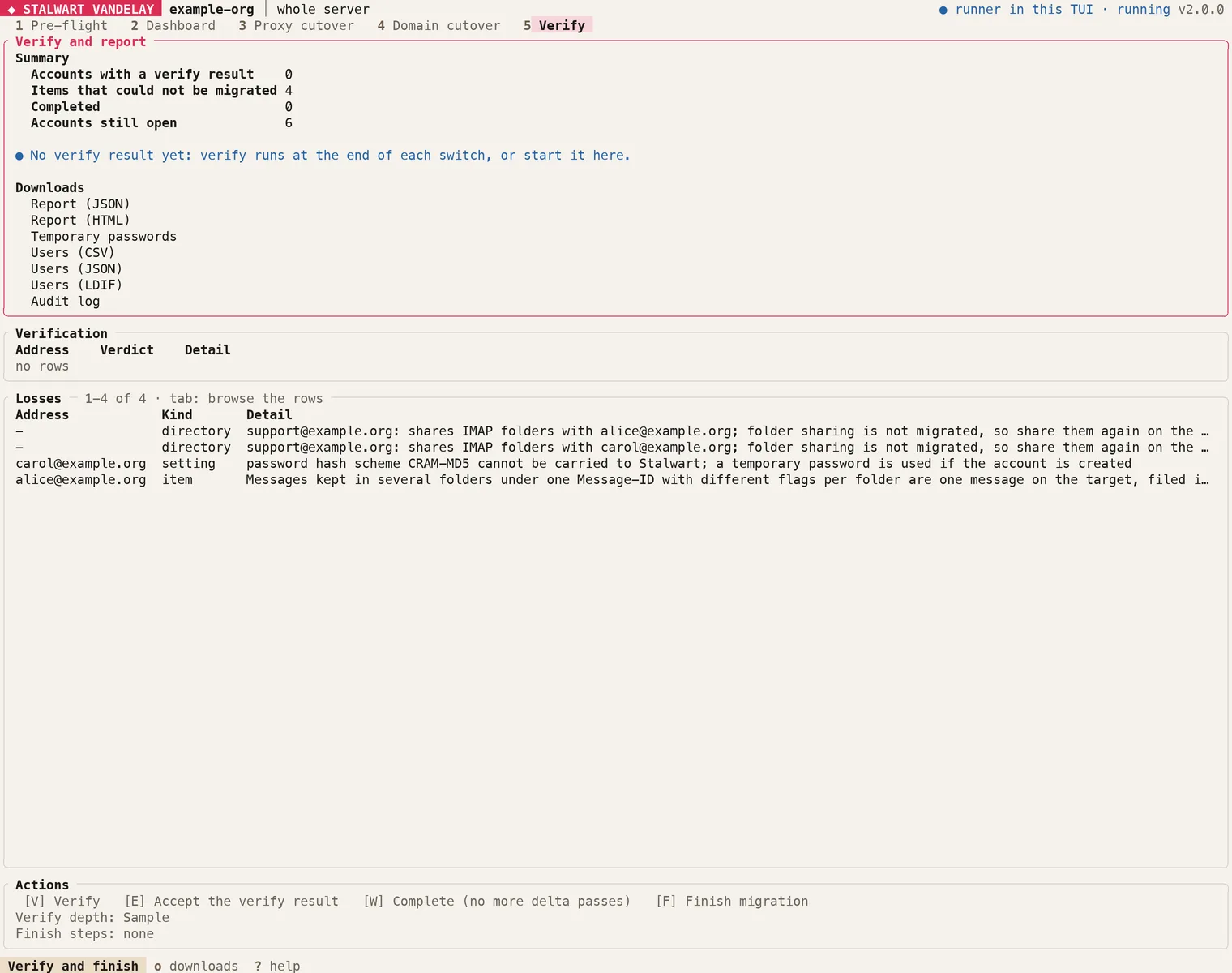
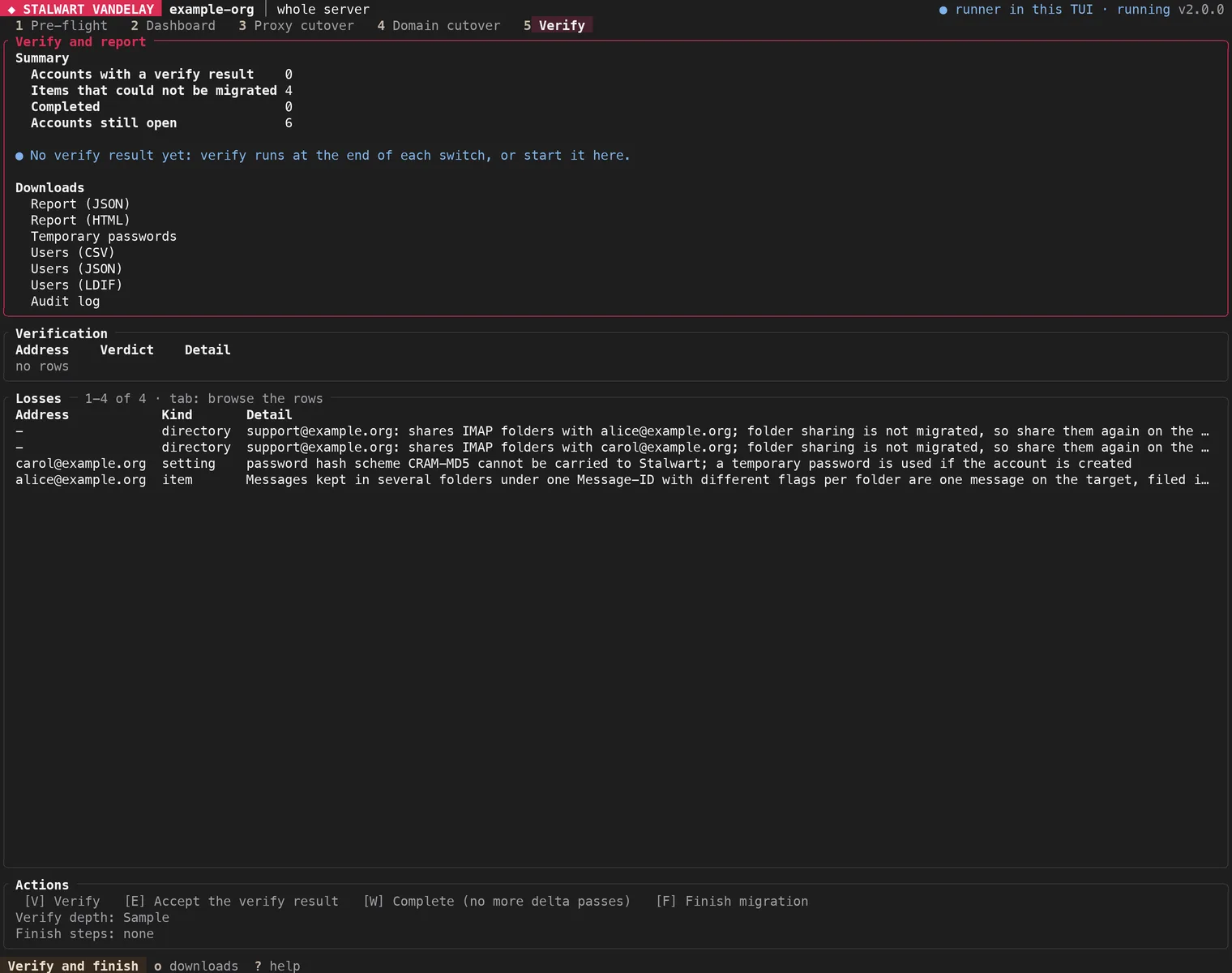
The “Verify and report” screen also shows every loss of the project in its “Losses” table, with the account, the kind of loss (rule, setting, item or directory) and a detail naming what was not migrated and why.
On Verify and report, choose “Sample” or “Full” and click Verify. Failed accounts are accepted with Accept the verify result.
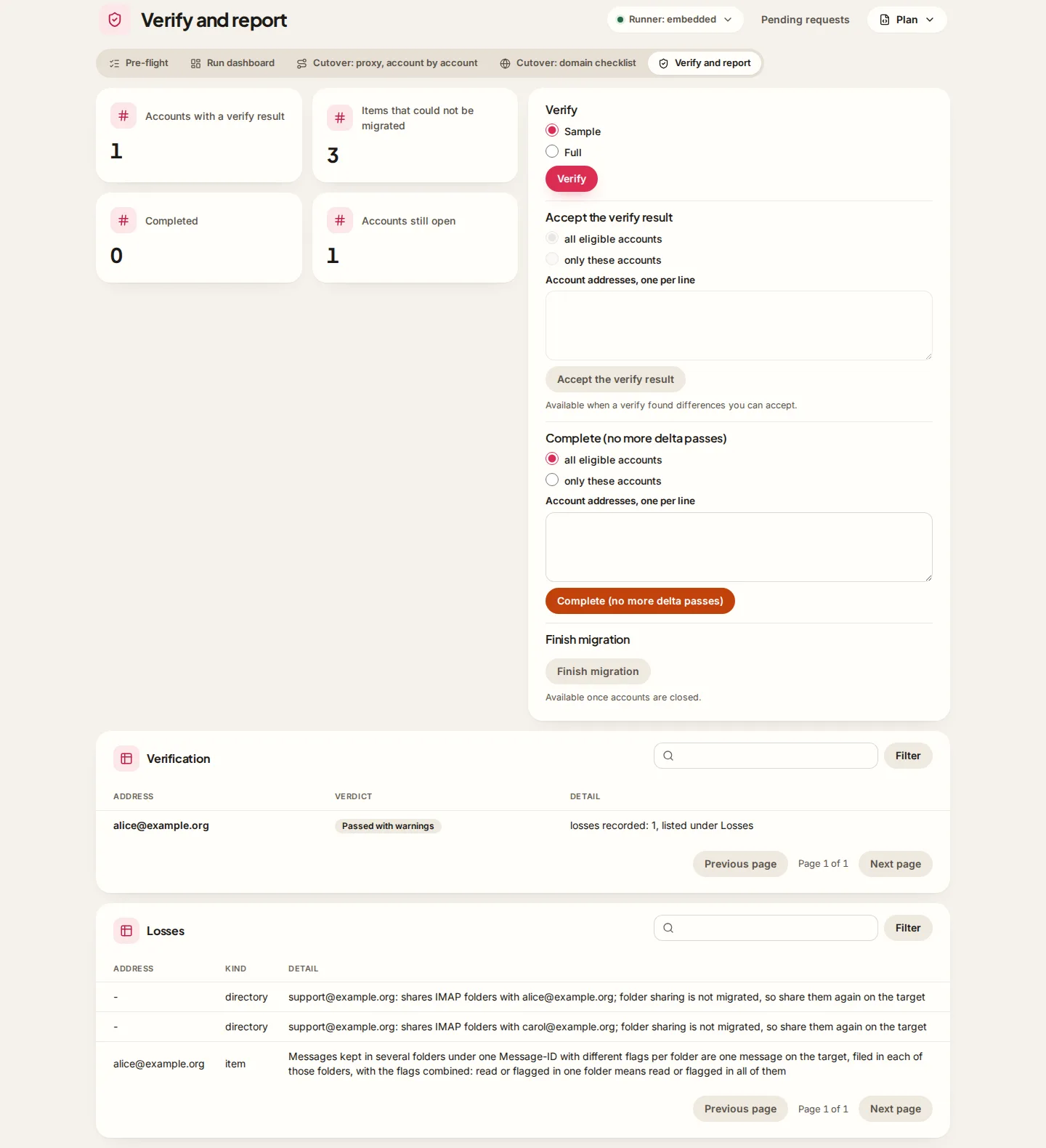
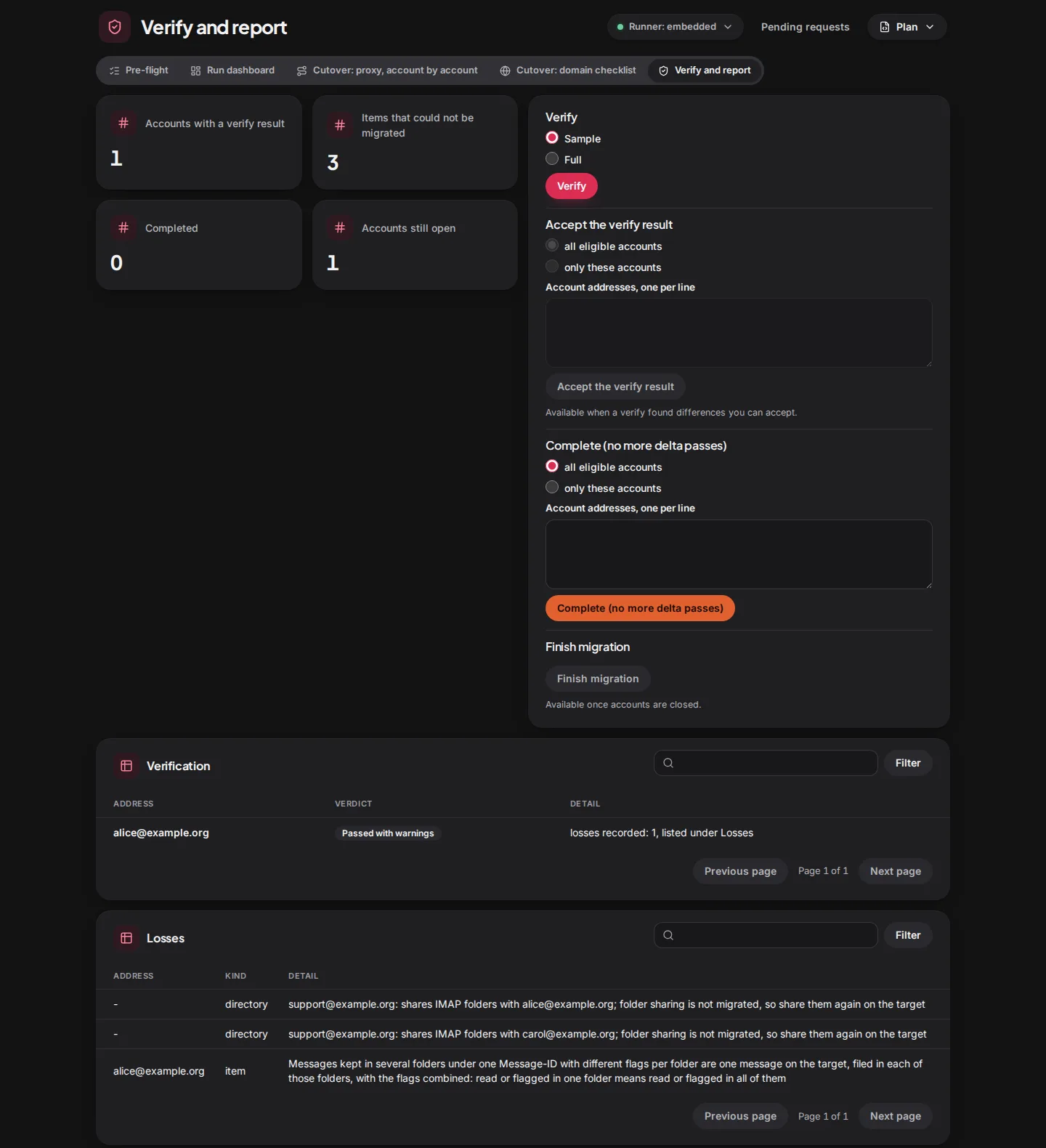
On the Verify screen (5), V verifies the selected accounts after asking for the depth (“Sample” or “Full”), and E accepts every failed verify.
The following commands verify one account in full and accept its result:
Completing accounts
Section titled “Completing accounts”Closing an account (Complete) declares it done: Vandelay runs no further delta or catch-up passes for it, and it becomes Completed. Vandelay cannot undo completing an account, so Complete asks for the number of accounts it affects, also for a single account. Closed accounts are the ones whose archives the finish steps may delete, and the project-wide finish steps wait until no account is still open. An account can be closed once it is Verified, or once it is Switched in proxy and domain modes.
On Verify and report, select the accounts, click Complete (no more delta passes) and confirm with the number of accounts.
On the Verify screen, press W to complete every account that can be completed.
The following command closes every account that can be closed:
vandelay migrate complete --allFinishing a project
Section titled “Finishing a project”Finishing removes what the migration left in place, in up to four steps. The first two can be repeated without loss and are ticked by default; the last two cannot be undone and run only when ticked or named:
- Set catch-all addresses (
catch-all): sets the catch-all address of each domain once every account that could hold the catch-all has switched or closed. A domain whose catch-all is not set yet is reported with the reason, for exampleexample.org: catch-all not set: 2 principals are still served by the source: <addresses>. A catch-all already set on Stalwart is kept. Account-scope projects skip this step. - Remove vandelay’s address from Stalwart’s allowed IPs (
allowed-ip): removes the allowed-IP entry that “Allow vandelay’s address” created. - Delete the local archives (
archives): deletes the archives of completed accounts from the project directory. A later fix or rerun then copies those accounts from the source again. - Wipe the secret store (
vault): overwrites and deletes the project’s secret store, with the temporary passwords in it.
The allowed-IP and secret-store steps run only once no account is still open; until then they are skipped with skipped while accounts are open. When any earlier step fails, the secret-store step is skipped with skipped because an earlier step failed, and the other steps still run. A finish can be repeated, for example once the last accounts are closed, and --only runs a subset of the steps.
When the secret-store step is ticked, the confirmation warns Wiping the secret store cannot be undone: the temporary passwords it holds are lost. Download them first. Finish with no step ticked is refused with no Finish step is ticked; tick at least one step to run.
Once Finish has run and no account is open, the migration is finished. The runner stops, and the project opens read-only on Verify and report, which shows Done: Finish ran and the migration is finished. together with the result of each finish step; the report, the audit log and the other downloads stay available, and the project’s settings can no longer be saved. A finished project no longer opens its secret store, so its temporary passwords cannot be downloaded from the web UI or the TUI. When the store was kept, the page says so; vandelay migrate export-temp-passwords still writes the passwords, and vandelay migrate secrets wipe removes the store once they are no longer needed.
On Verify and report, click Finish migration, tick the steps to run, and confirm with the number of accounts.
On the Verify screen, press F. The dialog lists the finish steps; space checks a step, enter runs the checked ones once the number of accounts is typed, and esc cancels.
The following command sets the catch-all addresses and removes the allowed-IP entry, leaving the archives and the secret store in place:
vandelay migrate finish --only catch-all,allowed-ipWithout --only, the command runs the same two default steps; the archives and the secret store are removed only when --only names archives or vault. The command asks for a confirmation, as described in Confirmations.
Reports and exports
Section titled “Reports and exports”A project produces four kinds of files, each written under reports/ in the project directory with a UTC timestamp in its name:
- The migration report (
vandelay migrate report), in JSON or HTML: the project’s scope and cutover mode, the number of accounts in each state, and per account its target, state, password kind, copy times, failed tasks, verify result and losses, followed by the project’s losses and address conflicts. - The user list (
vandelay migrate export-users), in CSV, JSON or LDIF, for an external identity provider when the password mode leaves sign-in to one. LDIF needs--base-dn.--include-temp-passwordsadds each account’s temporary password in clear text, so the file must be handled as a secret. - The temporary passwords (
vandelay migrate export-temp-passwords), in a CSV file encrypted with age under a passphrase of at least 12 characters. It opens withage -dand the passphrase. This is the file to use for delivering passwords to users. - The audit log (
vandelay migrate audit), as JSON Lines: every operator action and its actor.
The “Downloads” block on the cutover screens and on Verify and report offers “Report (JSON)”, “Report (HTML)”, “Temporary passwords”, “Users (CSV)”, “Users (JSON)”, “Users (LDIF)” and “Audit log”. “Temporary passwords” asks for the passphrase twice, and “Users (LDIF)” for the base DN.
Press o on the cutover or Verify screen. The “Downloads” dialog lists the same files; ↑ and ↓ choose one, enter writes it and shows its path, and esc closes the dialog.
The following commands write the HTML report, the LDIF user list and the encrypted temporary passwords, with the passphrase read from a file:
vandelay migrate report --format htmlvandelay migrate export-users --format ldif --base-dn dc=example,dc=orgvandelay migrate export-temp-passwords --passphrase-file /root/temp-passphraseStatus, inventory and inspection
Section titled “Status, inventory and inspection”Three read-only commands answer questions about a project without opening a front end. vandelay migrate status prints the runner and the state of every account and domain, and --json prints the same as a JSON document for monitoring. vandelay migrate inventory lists the discovered accounts as CSV or, with --format json, as JSON. vandelay migrate inspect --account ADDRESS [TYPE] shows the contents of one account’s archive, by type and page (--limit, --offset), and works while the runner holds the archive; the per-account vandelay inspect refuses an archive in use by the runner with archive in use by the project runner; use `vandelay migrate inspect` .
The following command lists the first 20 archived messages of one account: