Web interface
The proxy has a built-in web interface for day-to-day operation: watching traffic and destination health, moving accounts between destinations, disconnecting sessions and changing the configuration. It is served by the management listener declared in [admin], at https://<admin address>/ui/ (the bare address redirects there), and is built into the proxy binary, so it needs no further installation. Everything it does goes through the management API, so a script can do the same.
Whoever can reach the management address can reach the interface, which should therefore stay on the loopback address or a trusted management network, as described under Security.
Sign-in
Section titled “Sign-in”The sign-in page asks for the management token, the content of the token file that proxy init creates (/etc/proxy/admin-token in a standard installation). The interface exchanges the token for a browser session and never stores the token itself: the session lives in an HttpOnly cookie that scripts on the page cannot read, and it is bound to the address the browser signed in from. A wrong token is answered with Invalid token. Repeated failures lock this address out for a while., and after too many attempts with Too many failed attempts from this address. Try again later.
A session ends after 30 minutes without activity or 12 hours in total by default (admin.session_idle_timeout and admin.session_lifetime), and when the management token changes. The interface then shows The session expired. Sign in again to continue. and returns to the page that was open after the next sign-in. The session menu at the top right shows the remaining time and offers Sign out, which ends the session on the server.
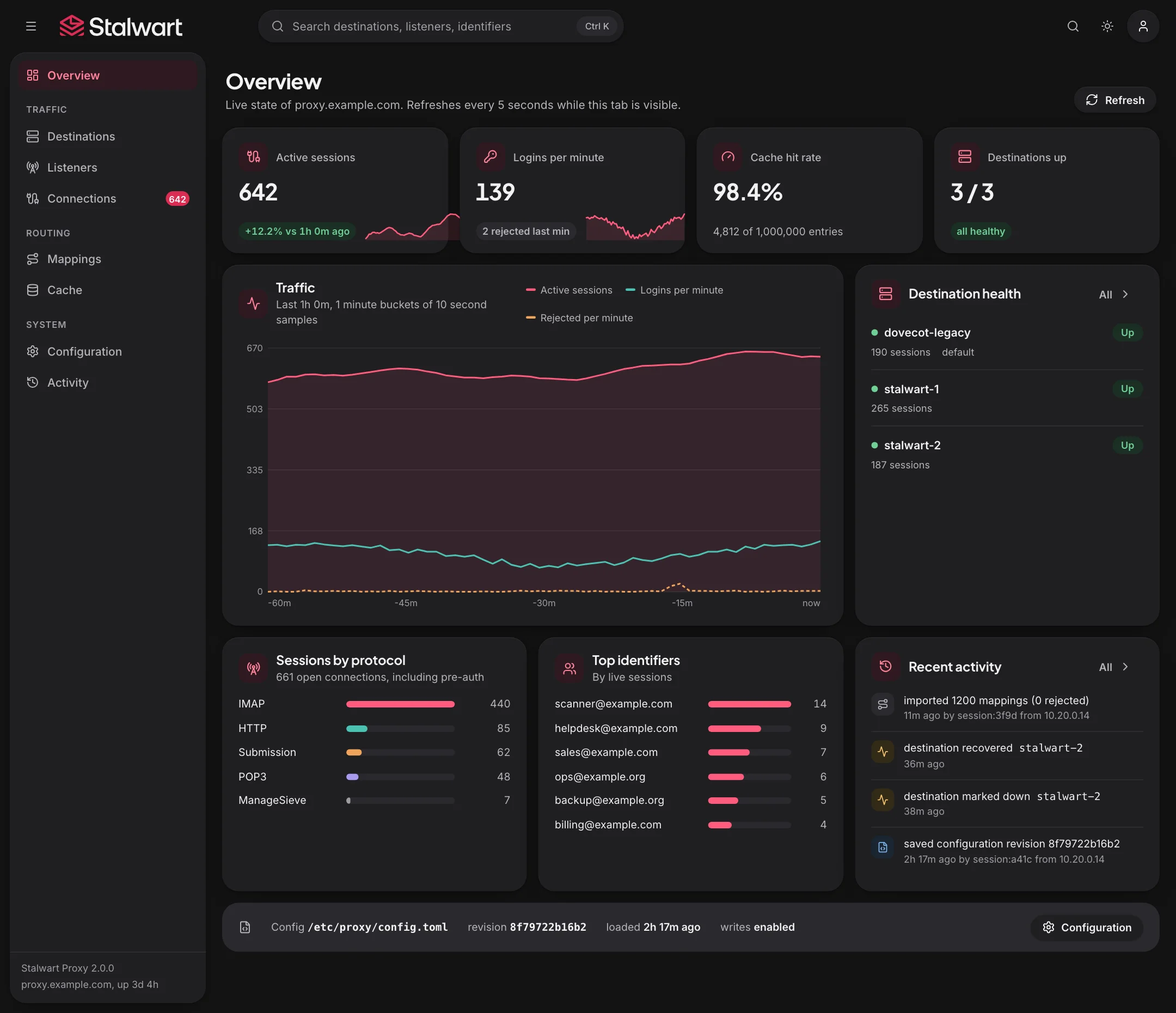
The interface follows the browser’s light or dark preference, and the theme button at the top switches between them.
Navigation
Section titled “Navigation”The sidebar groups the pages by purpose: Overview; Destinations, Listeners and Connections under Traffic; Mappings and Cache under Routing; Configuration and Activity under System. A red dot on Destinations signals that a destination is not up, and Connections shows the number of active sessions. The search box (Ctrl+K) jumps to a page, a destination or a listener, and for anything that looks like an account it offers a route lookup.
Pages refresh every 5 seconds while the browser tab is visible, and pause while it is hidden.
Overview
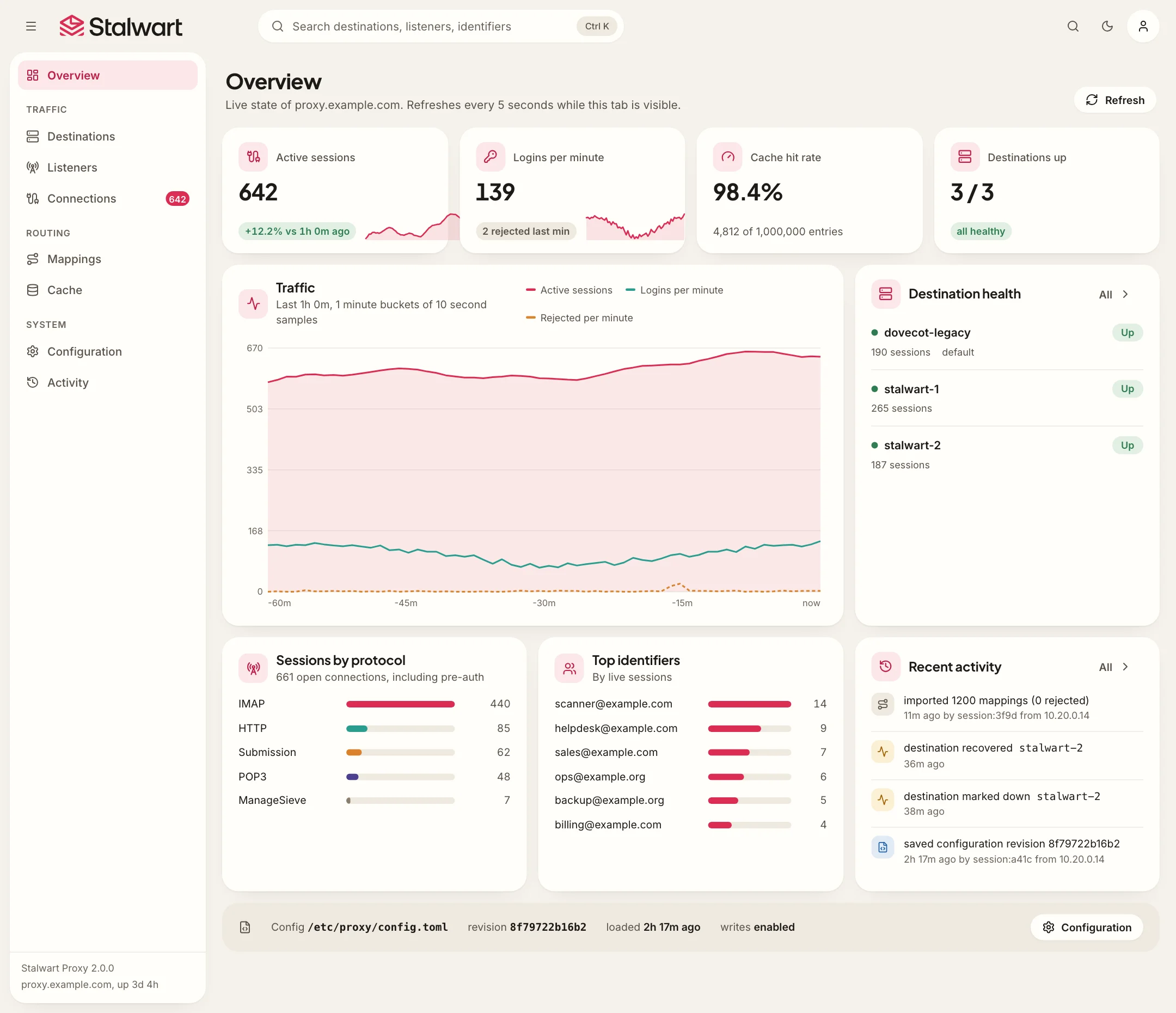
Section titled “Overview”The overview shows the live state of the proxy at a glance: active sessions, logins per minute with the number rejected, the cache hit rate, and how many destinations are up. Below them are a traffic chart of the last hour, the health of every destination with a Reset button for those that are not up, sessions by protocol, the accounts with the most sessions, and the latest entries of the activity log. A strip at the bottom shows the configuration file, its revision, when it was loaded and whether configuration writes are enabled.
Setup guide
Section titled “Setup guide”As long as no destination or no listener exists, the overview shows a Set up the proxy guide with the remaining steps, each linking to the page that completes it:
- Add a destination, the mail backend that authenticated sessions go to.
- Choose the default destination in the routing section, where logins without a mapping go.
- Optionally, connect a mapping store: a file inside
mappings/, Redis or SQL. - Optionally, add a TLS certificate for the mail host names, needed by listeners with implicit TLS or STARTTLS.
- Add listeners, which need the default destination.
Each step is validated and applied live, so the proxy starts accepting clients as soon as the first listener is saved.
Destinations
Section titled “Destinations”The destinations page lists every backend with its endpoints, forwarding mode, backend certificate verification, role (default or pass-through), health, live sessions and the number of mapped accounts, and can be filtered by health and protocol. A destination’s own page shows the circuit breaker in detail: the state, the failure streak against the threshold, the number of distinct clients behind it, whether the failures are host-level, and the last failure with the stage it happened at. While a destination is down, a banner counts down until it accepts logins again; Reset health returns it to service at once.
New destination and Edit open a form with the destination’s settings and one row per protocol. A destination that the routing section, an HTTP route or mappings still reference cannot be deleted; the interface lists the references to remove first.
Listeners
Section titled “Listeners”The listeners page lists every socket with its protocol, bind addresses, TLS mode, inbound PROXY protocol settings, usage against max_connections and the number of connections accepted and refused. New listener and a click on a listener open its form. A saved listener binds, rebinds or closes its sockets at once, and open sessions keep running, as described under Applying changes.
When an operator allowlist is set, the listener and destination pages show which addresses, hosts and ports it permits.
Connections
Section titled “Connections”The connections page lists the authenticated sessions bridged to a backend, newest first, with the account, protocol and listener, client and backend addresses and whether each leg uses TLS, the start time and the bytes relayed. Connections still before authentication are not listed. The list can be filtered by an account prefix, protocol, destination and listener.
Kick session closes one session, and a selection or every session of a filtered account can be kicked at once. A kick closes both legs immediately; clients usually reconnect and are routed again from the current mapping.
Login delays
Section titled “Login delays”Delay logins holds new logins of an account for a chosen time, so that an account can be moved without its clients reconnecting to the old destination in between: delay the account, kick its sessions, then change its mapping. Each held login waits at most 2 minutes. Changing the account’s mapping or invalidating its cache entry releases the delay early. The Login delays tab lists the delays in effect with their remaining time and the number of held logins, with Extend and Release buttons.
Mappings
Section titled “Mappings”The mappings page shows how accounts are routed. The Route lookup panel takes an identifier as a client would send it and shows each step without touching the cache: the identifier after the master user suffix is removed, its normalised form, the mapping in the store or the fallback to the default destination, the final destination with its health, and the state of the cache entry. When the cached route differs from the store, it says so, and Invalidate cache applies the stored mapping.
The Store panel describes the mapping store and whether it is writable, and the table below lists the stored mappings by identifier prefix. With a writable store, Add mapping, Edit and Delete change single entries, and Import merges a list in the file store’s format, one identifier and destination per line, from a pasted text or a .tsv file. A saved mapping invalidates the account’s cache entry and releases its login delay, but existing sessions stay where they are until they are kicked. Reload store reads the mapping file again after it was edited on the host.
Without a [mapping] table, every login goes to the default destination, and the page links to the mapping section of the configuration.
The cache page shows the number of cached routes, the hit rate, the hits and misses, and the lifetime of each kind of entry. Invalidate removes the cached route of one account, and Invalidate all clears the whole cache, after a confirmation, so that every account is looked up again on its next login; both also release login delays. Mapping changes made through the interface invalidate their entries automatically, so these buttons are needed after changing the store directly, as described under Cache invalidation.
Activity
Section titled “Activity”The activity page shows the last 512 events since the proxy started: sign-ins, mapping changes, kicks, delays and cache invalidations, health transitions of destinations, and configuration changes, each with its time and, for management actions, the session and address that performed it. Tabs filter it by kind. The log is held in memory only.
Configuration
Section titled “Configuration”The configuration page edits the configuration file. Its header names the file, its revision and when it was loaded, and Reload from disk applies a file edited on the host. Four tabs organise the work:
- Sections shows each table of the file as a form, with every key’s description and its dotted path. Destinations and listeners link to their own pages. Tables that hold lists of entries, such as the HTTP routes, are edited in the Source tab.
- Certificates manages the TLS certificates, as described below.
- Source shows the whole file as text, with Validate and Save and apply. Secrets are shown masked, and a masked value left unchanged keeps the value on disk.
- History lists the last 10 versions that changes replaced, with Diff against the current file and Restore.
Every change, whether from a form, the source editor, a restore or a certificate upload, goes through the same review. The interface first runs it as a dry run, which validates the result and builds the complete new configuration without saving anything, and then shows a Review changes dialog with the revision change, a line diff of the file and any settings that need a restart. Apply writes the file, keeps the previous version in the history and applies the change live. A change that fails validation opens a Validation failed dialog with every error; when an error comes from the operator allowlist or the reserved management port, a Blocked by the operator banner explains that only the file on the host can widen it.
The [admin] table is shown read-only, so that no change made in the interface can lock administrators out. When the file changed on disk after the page loaded, a banner says so, and a change based on the old revision is refused with Configuration changed on disk; the page then reloads with the current file. Settings that only take effect after a restart (server.threads, server.log_level and admin.bind) carry a Restart badge, and a Restart required banner lists them once changed, until the proxy restarts.
With admin.config_write disabled, the page shows the configuration read-only, with a banner that says to edit the file on the host and use Reload from disk. Mapping changes, kicks, delays and cache invalidation do not depend on this setting.
Certificates
Section titled “Certificates”The Certificates tab lists the TLS certificates with their files, subjects and default flag. Add certificate and Replace open an upload dialog that takes the certificate chain and the private key in PEM form, pasted or chosen from files, optional subjects, and whether the certificate is the default for clients that send no or an unknown server name. The proxy checks that the key matches the certificate, stores both in certs/ next to the configuration, readable only by the proxy’s account, and references them from [tls.certificate.<name>]. The private key is sent once and never shown again. Leaving the subjects empty uses the names in the certificate. Making a certificate the default removes the flag from the others.
The certificate named admin is the one the management interface itself presents. Replacing it changes what the browser sees on its next connection. Without it, the interface presents the default certificate, the only certificate when there is just one, or else a generated self-signed one, whose fingerprint changes whenever the configuration is loaded. The upload endpoint, its checks and its errors are described under Certificates in the API reference.